# Accessing Claudia via Whatsapp

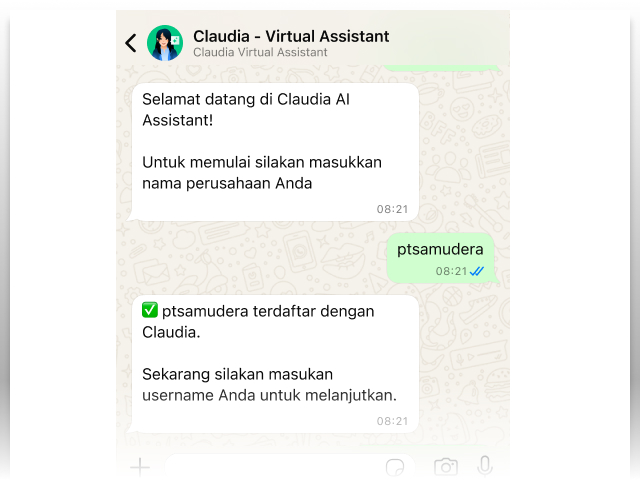
Interacting with Claudia is now even more convenient, as you can chat with her directly through WhatsApp. Follow the steps below to start using Claudia on WhatsApp:

#### 1. Greet Claudia for the First Time

If this is your first interaction with Claudia via WhatsApp, she will greet you and provide instructions to enter your company name once you initiate the conversation.

<figure><img src="https://2914931754-files.gitbook.io/~/files/v0/b/gitbook-x-prod.appspot.com/o/spaces%2FXbRDlxflF58D1QG2tLmP%2Fuploads%2FfwQ2aoqbMGPeKA4Fgy17%2Fimage.png?alt=media&#x26;token=f2885753-051a-47cc-ad5e-6bd25fa74556" alt=""><figcaption></figcaption></figure>

**Note:** Only companies that are subscribed to Claudia can use the WhatsApp feature.

#### 2. Enter Your Company ID Registered in CATAPA

When Claudia asks for your company ID, simply reply with your company’s registered ID.

<figure><img src="https://2914931754-files.gitbook.io/~/files/v0/b/gitbook-x-prod.appspot.com/o/spaces%2FXbRDlxflF58D1QG2tLmP%2Fuploads%2FjaW57OlS4zzUBWT6FiCj%2Fimage.png?alt=media&#x26;token=fa12d80f-cb1d-4eb4-88e3-a0b37fd39104" alt=""><figcaption></figcaption></figure>

#### 3. Enter Your Company Username

Claudia will then request your CATAPA username. Respond by typing your username.

<figure><img src="https://2914931754-files.gitbook.io/~/files/v0/b/gitbook-x-prod.appspot.com/o/spaces%2FXbRDlxflF58D1QG2tLmP%2Fuploads%2F5IiTVJu01yV9Rg64ocdm%2Fimage.png?alt=media&#x26;token=89926987-279e-4d70-a9cf-eef7449860cc" alt=""><figcaption></figcaption></figure>

#### 4. Enter the OTP Sent to Your Registered Email

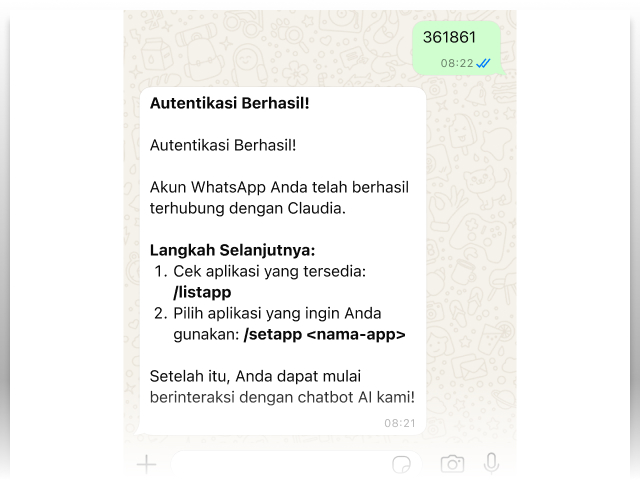
An OTP (One-Time Password) will be emailed to the address associated with your Claudia account. Enter the OTP in the chat to continue.

<figure><img src="https://2914931754-files.gitbook.io/~/files/v0/b/gitbook-x-prod.appspot.com/o/spaces%2FXbRDlxflF58D1QG2tLmP%2Fuploads%2Fog6WCiZIWOGWq2KOmvT6%2Fimage.png?alt=media&#x26;token=1398f2ff-a9b5-4e2f-94b4-9e6cdf2ccd64" alt=""><figcaption></figcaption></figure>

#### 5. View Available Claudia Applications (Assistant Modes)

You can view all available assistant modes by typing the command **/listapp.**\
Claudia will display a list of applications along with their corresponding IDs.

<figure><img src="https://2914931754-files.gitbook.io/~/files/v0/b/gitbook-x-prod.appspot.com/o/spaces%2FXbRDlxflF58D1QG2tLmP%2Fuploads%2FS8u61Oo134sPq6egz8bg%2Fimage.png?alt=media&#x26;token=0306be09-2c8d-4d67-8433-c1325827007f" alt=""><figcaption></figcaption></figure>

#### 6. Select the Application You Want to Use

To switch to a specific assistant mode, use the command: **/setapp \[application\_id].** Choose the appropriate ID from the list provided in the previous step.

<figure><img src="https://2914931754-files.gitbook.io/~/files/v0/b/gitbook-x-prod.appspot.com/o/spaces%2FXbRDlxflF58D1QG2tLmP%2Fuploads%2FZsdMMksDHjoLgkfBUkU2%2Fimage.png?alt=media&#x26;token=255d989f-f10f-4a43-bc55-a3665aa83bcb" alt=""><figcaption></figcaption></figure>

If the application you are looking for does not appear, please contact your company’s HR team to adjust your access settings.

#### 7. Start Chatting with Claudia via Whatsapp

Once you have selected your preferred assistant mode, you can begin asking questions and interacting with Claudia just as you would in the web version.

<figure><img src="https://2914931754-files.gitbook.io/~/files/v0/b/gitbook-x-prod.appspot.com/o/spaces%2FXbRDlxflF58D1QG2tLmP%2Fuploads%2FIJxzqw4GfFaB2zKC0uJv%2Fimage.png?alt=media&#x26;token=1c02056d-4022-49b0-b19c-0f7ac9a9cccc" alt=""><figcaption></figcaption></figure>

**Important Note:** A single phone number can only be associated with one Claudia account.