# Organization Management
This feature enables the **Global Admin** to manage the complete tenant lifecycle, from provisioning to deletion, through automated setup workflows and tier-based feature controls. Global Admin can create, suspend, and delete tenant organizations, view all tenants with summary statistics, assign subscription tiers and feature toggles, manage tenant lifecycles using automated provisioning, and configure global settings.
### View All Registered Organizations
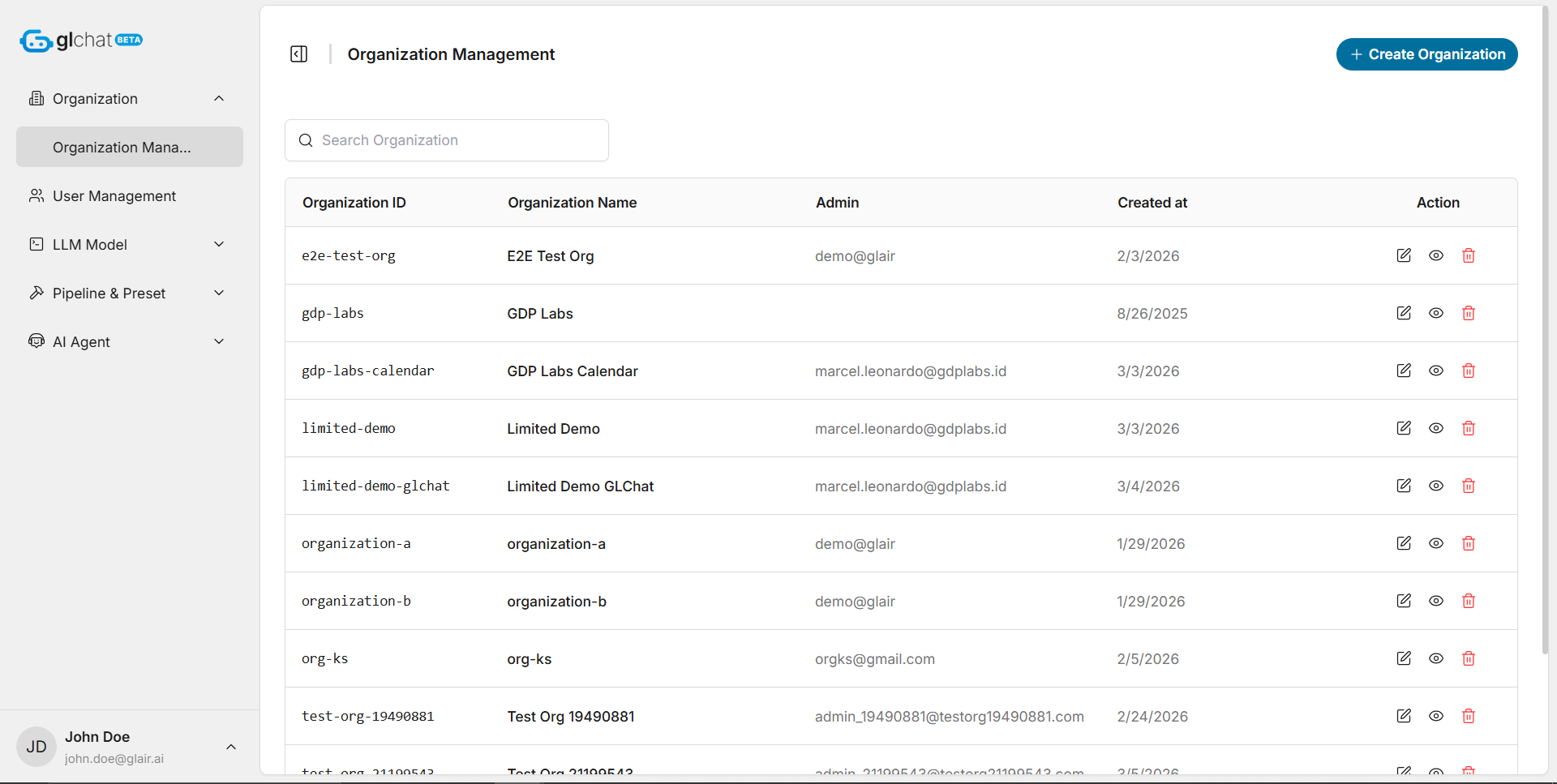
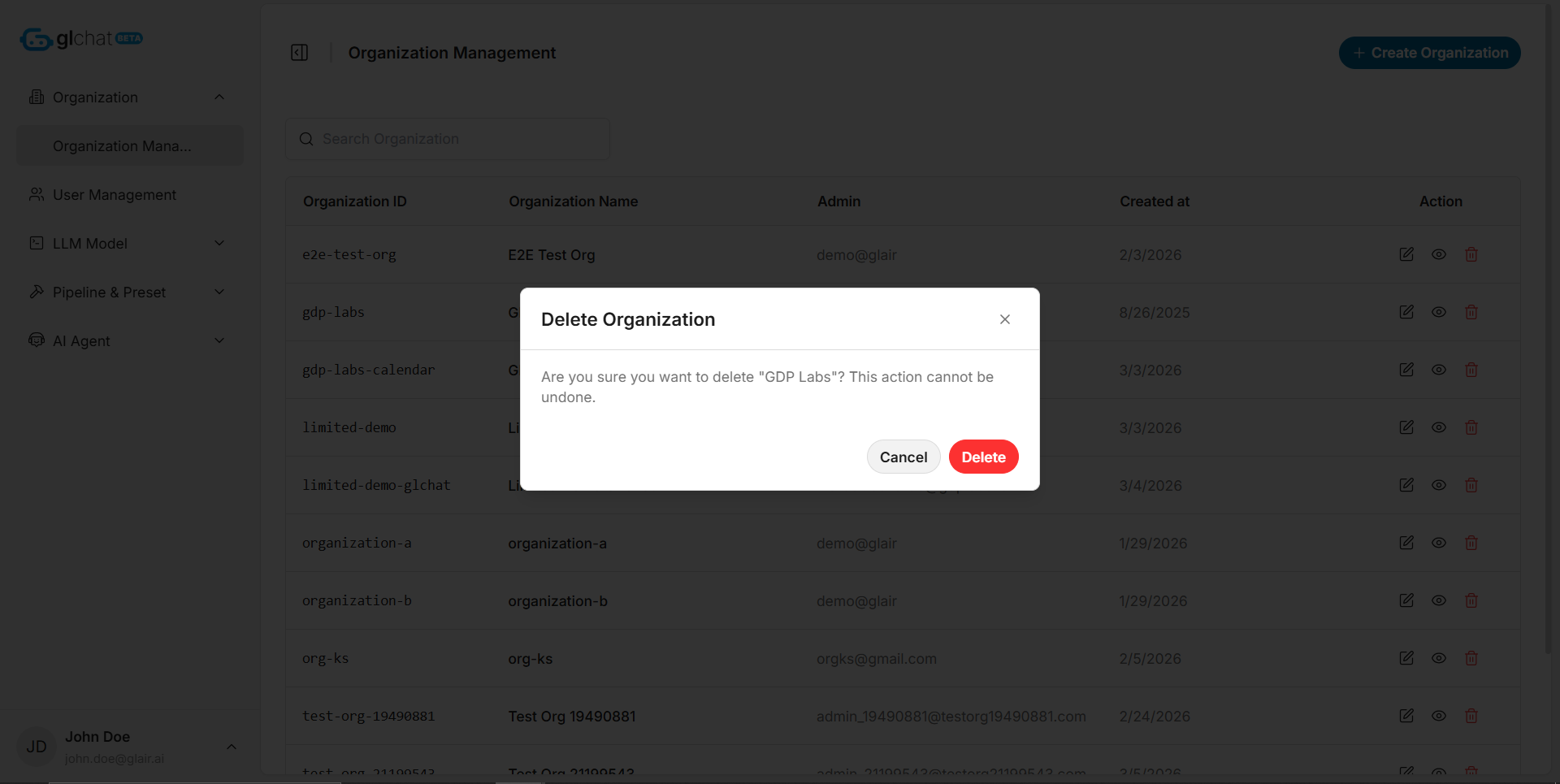
This feature enables a Global Admin (once at least one tenant organization exists) to open the **Organizations** section and view a centralized directory of all tenant organizations. The list displays key tenant details, including:
1. Organization ID
2. Organization Name
3. Organization Admin Account
4. Creation Date
A built-in search helps Global Admins quickly locate specific tenants. From the directory, a Global Admin can select an organization to view its detailed profile, update organization properties, or delete the tenant using the actions in the rightmost column.
If the search query returns no matches, the system displays a **“No results found”** message.
### Create New Organization
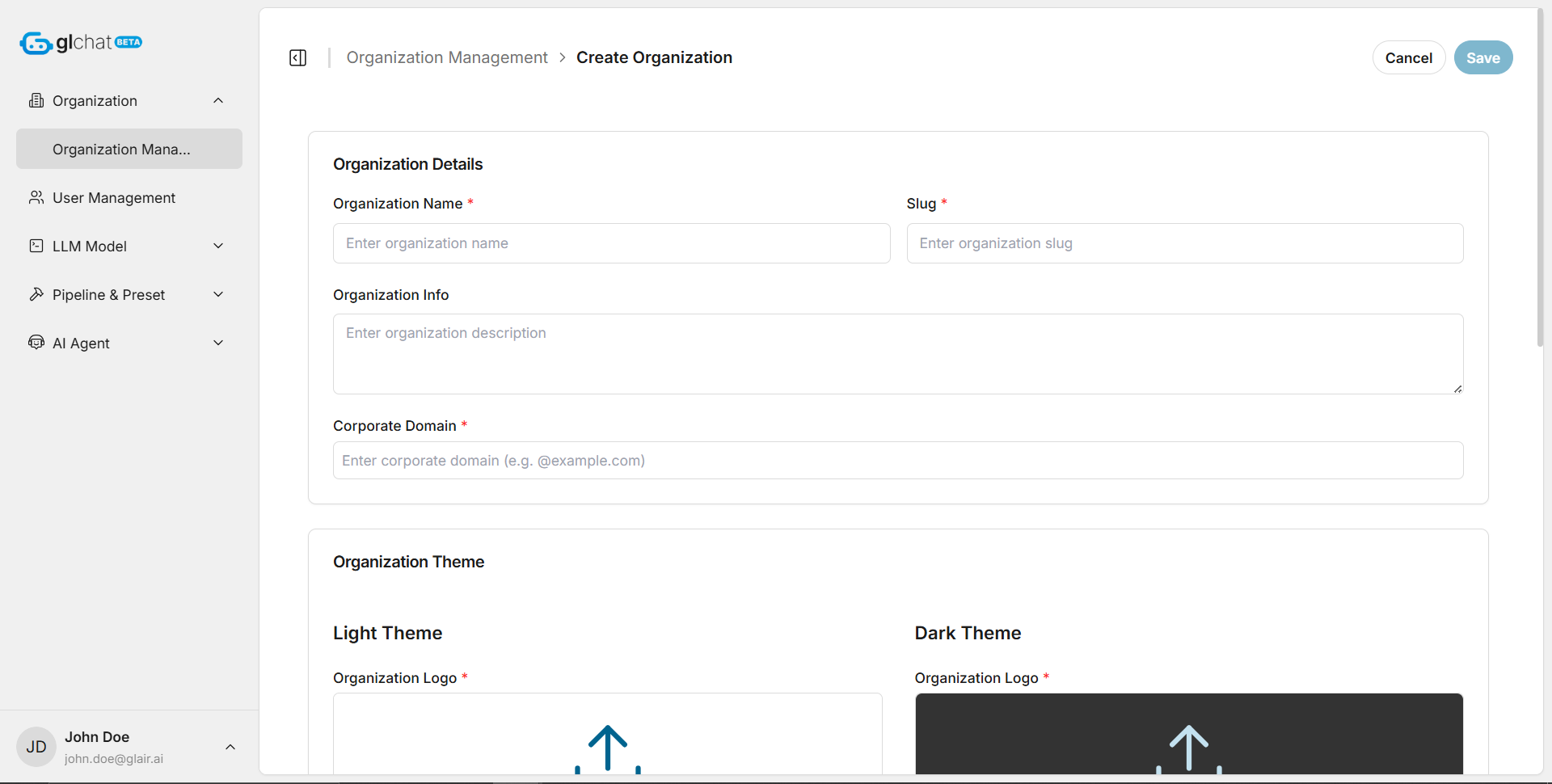
A Global Admin can open the **Create Organization** form from the **View All Organizations** page by clicking **Create Organization** in the top-right of the **Organization Management** section. Complete the required fields, then click **Save** to create the organization or **Cancel** to discard your changes.
#### Organization Details
1. **Organization Name**\
Enter the organization’s official name.
2. **Slug**\
Enter a unique identifier used in URLs and internal system references.
#### Organization Info
1. **Organization Info**\
Enter a short description of the organization.
2. **Corporate Domain**\
Enter the organization’s corporate email domain (e.g., `example.com`) that will be associated with this tenant.
#### Organization Theme
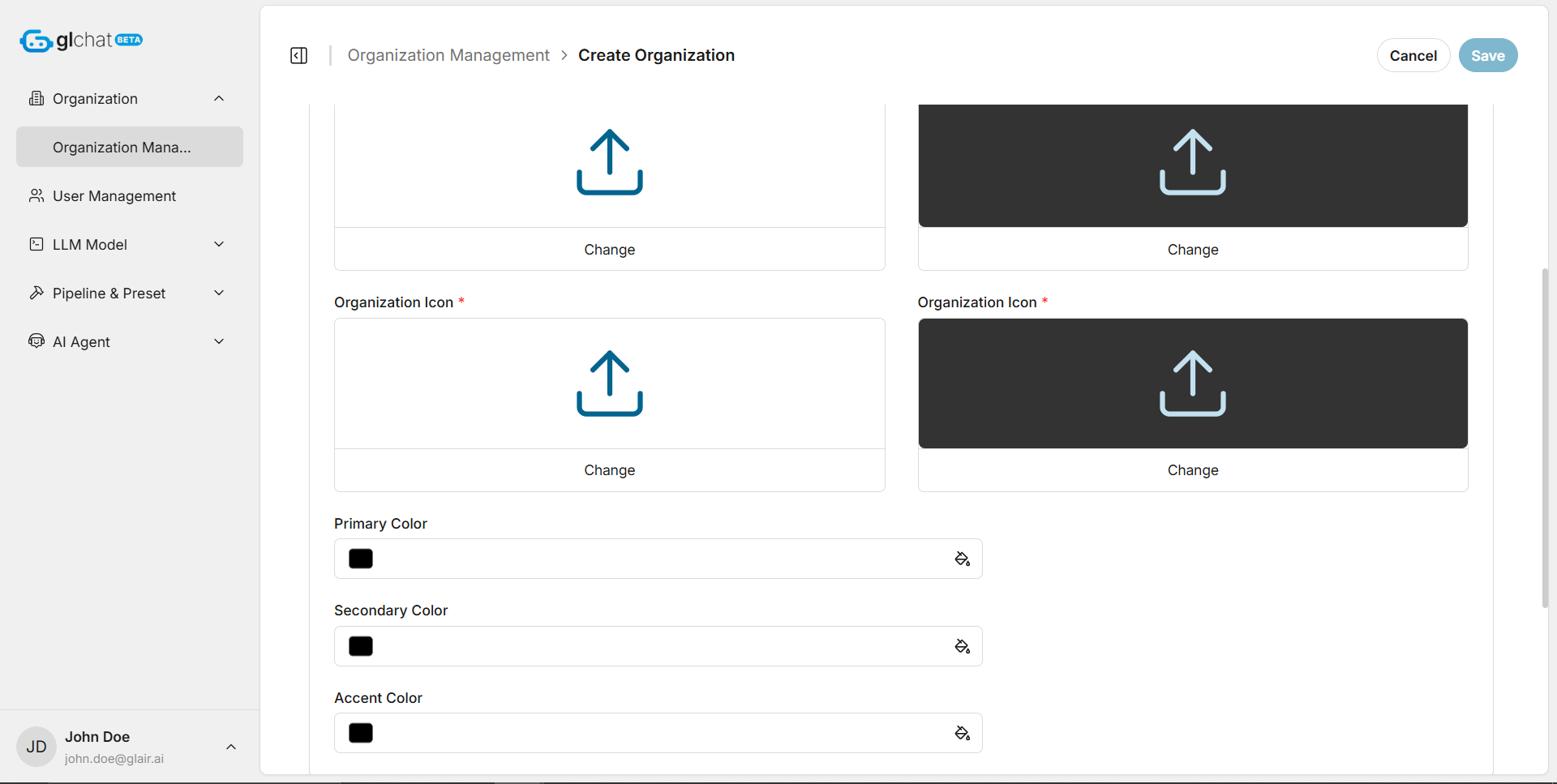
1. **Organization Logo (Light Theme)**\
Upload the logo used in light mode.
2. **Organization Logo (Dark Theme)**\
Upload the logo used in dark mode.
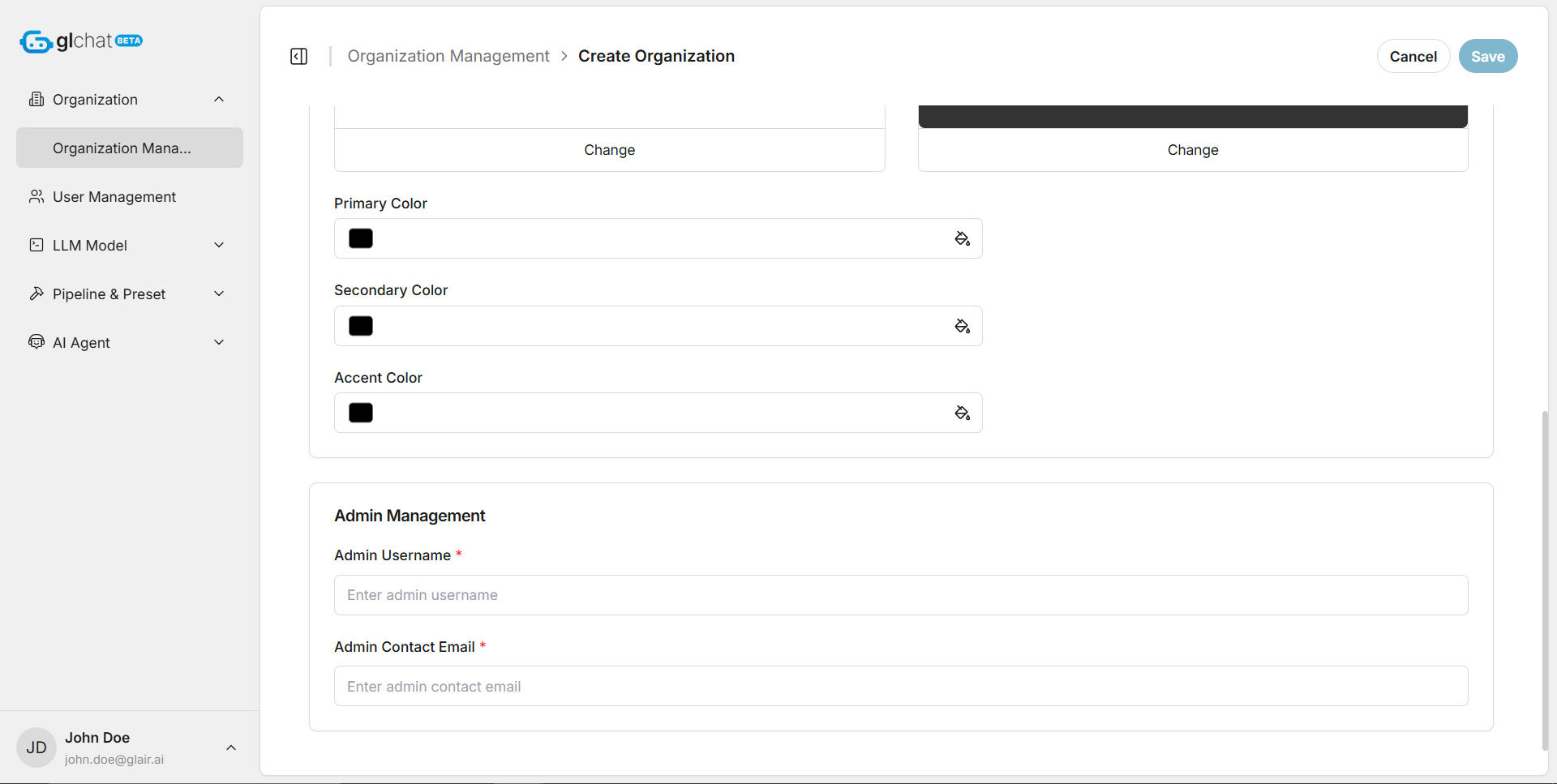
3. **Primary Color**\
Choose the organization’s primary brand color.
4. **Secondary Color**\
Choose the organization’s secondary brand color.
5. **Accent Color**\
Choose the accent color used across the UI.
#### Admin Management
1. **Admin Username**\
Enter the username for the initial Organization Admin account.
2. **Admin Contact Email**\
Enter the admin’s email address to receive the invitation and manage the organization.
### Edit Organization
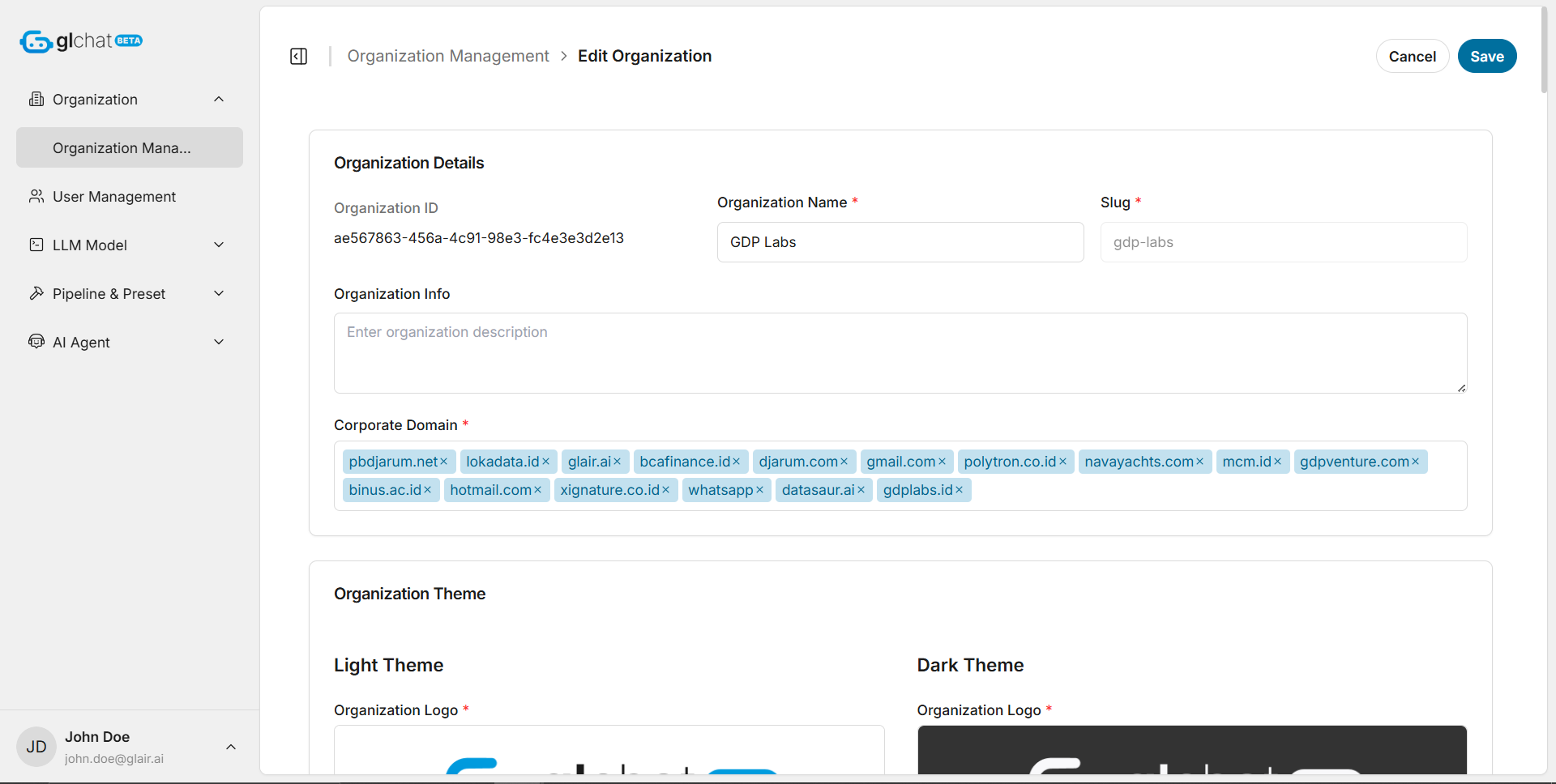
On the **Edit Organization** page, a Global Admin can update almost all settings originally configured during organization creation. This includes changes to the organization name, description, corporate domain, branding assets (such as light and dark logos), and other organization details.
The only field that cannot be changed is the **Organization Slug**. Once created, the slug remains fixed because it serves as the organization’s stable identifier across URLs and internal system references.
### Delete Organization
From the **View All Organizations** page, a Global Admin can delete a tenant organization by clicking the **trash** icon in the rightmost column of the organization list.
When selected, the system displays a **confirmation modal** to verify the action before proceeding. Once the Global Admin confirms, the system runs the deletion workflow and removes the organization from the active list.