# Configure LLM Labs Client
This page explains how to configure the LLM Labs Client for integration with GLChat. This **setup is required once**. After configuration, creating a Knowledge Base will automatically create it in both GLChat and LLM Labs.
{% hint style="info" %}
**LLM Labs** ([llm.datasaur.ai](http://llm.datasaur.ai)) is a private multi-model AI platform developed by Datasaur. It supports evaluation and cost analysis for over 200 AI models, helping you select and integrate the most suitable model for your project.
{% endhint %}
***
### Generate LLM Labs OAuth Credentials
To obtain the Client ID and Client Secret:
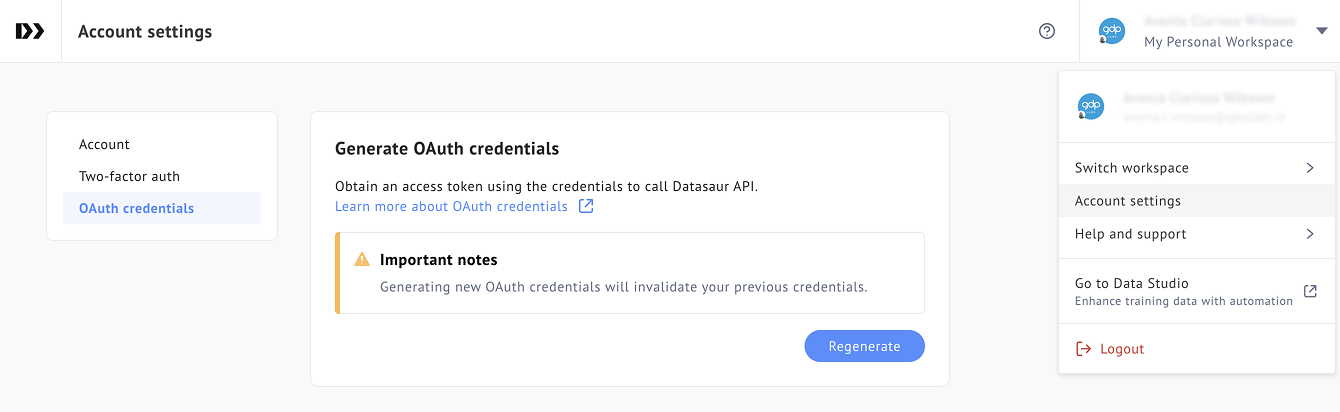
1. Log in to [**LLM Labs**](https://llm.datasaur.ai).
2. Click your profile icon in the upper-right corner.
3. Open **Account Settings**.
4. From the left sidebar menu, select **OAuth Credentials**.
1. Ensure the user generating the OAuth credentials has access to the LLM Labs workspace
5. Click **Regenerate** to generate a new **Client ID** and **Client Secret**.
{% hint style="info" %}
Ensure the Client ID and Client Secret are securely stored, as they will not be displayed again. If lost, new credentials must be generated.
{% endhint %}
***
### Add Credentials to Admin Dashboard
After generating the credentials:
1. Copy the **Client ID** and **Client Secret**.
2. Go to the **Knowledge Base** menu in the Admin Dashboard.
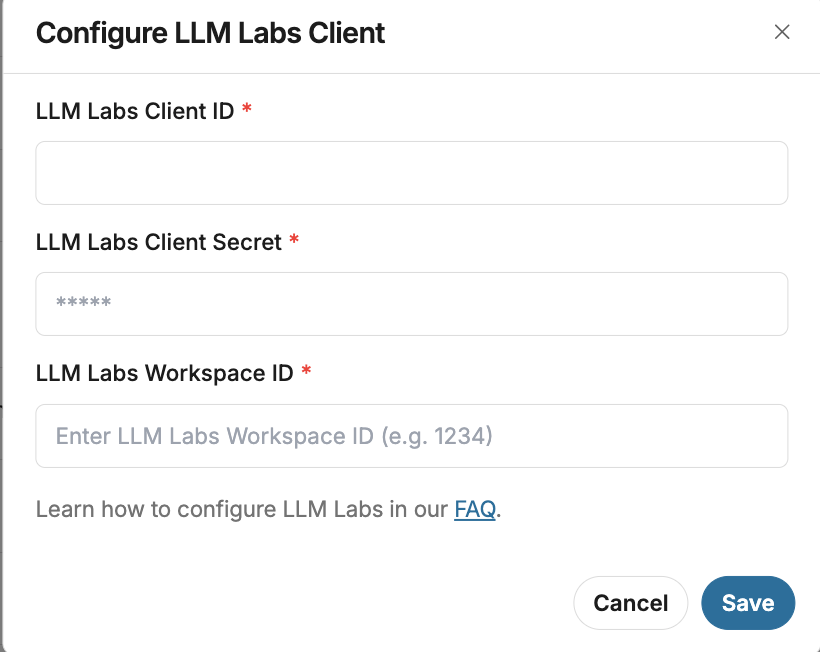
3. Click the "Client Configuration" button
4. Enter the credentials in the LLM Labs Client configuration section.
* **LLM Labs Client ID**\
Obtained from LLM Labs (see steps below).
* **LLM Labs Client Secret**\
Generated together with the Client ID.
* **LLM Labs Workspace ID**\
Copy this from the URL of your LLM Labs workspace.
* For example: \
`https://llm.datasaur.ai/teams/0000/...`
In this case, the Workspace ID is **0000**.
5. Save the configuration.