# Dashboard
Once you log in to Meemo, you will be directed to the **Dashboard**. The dashboard is your central workspace, where all of your meetings are listed, organized, and accessible. From here, you can quickly see the status of ongoing meetings, review past sessions, and prepare for upcoming ones.
## Meeting List
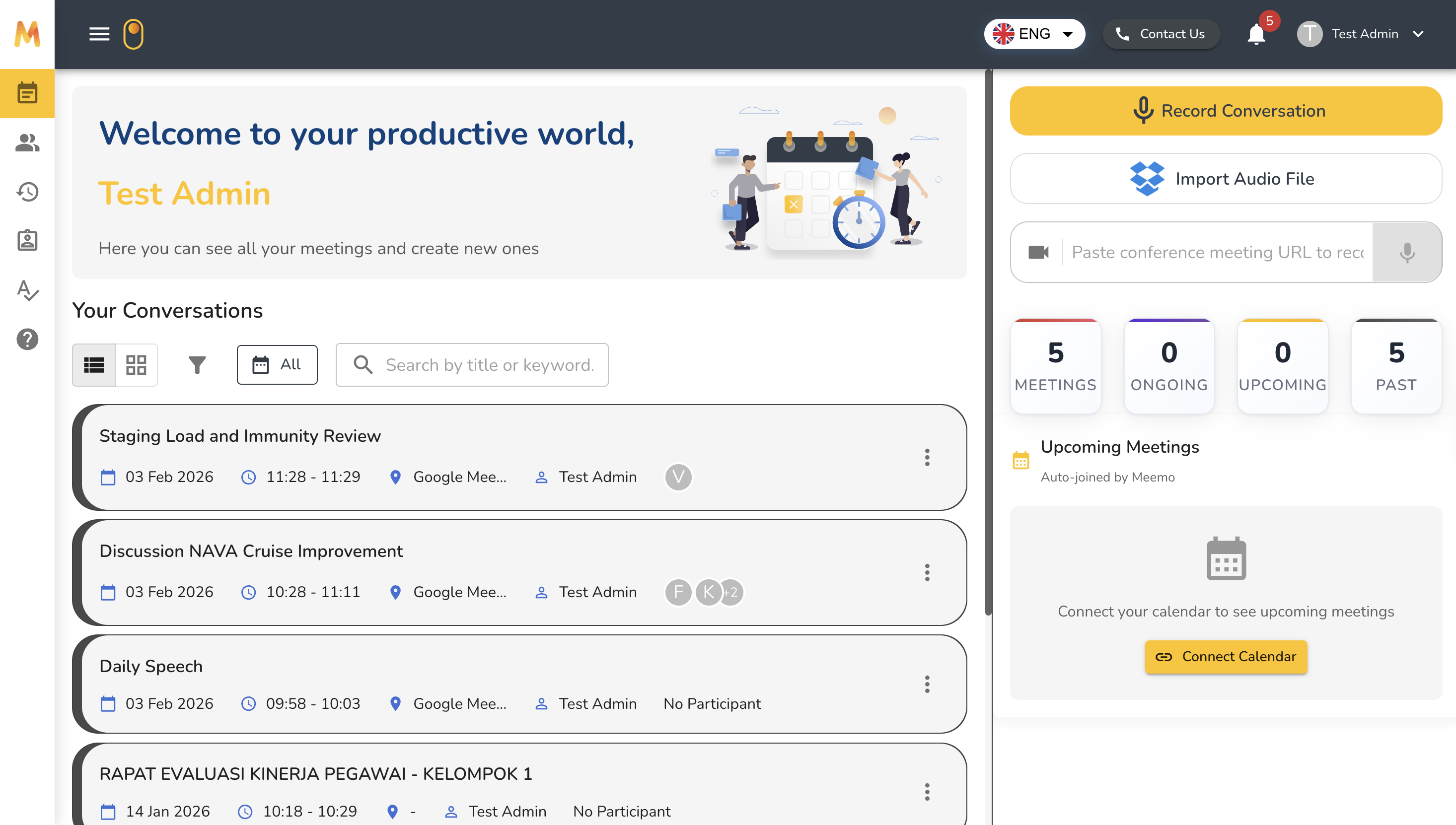
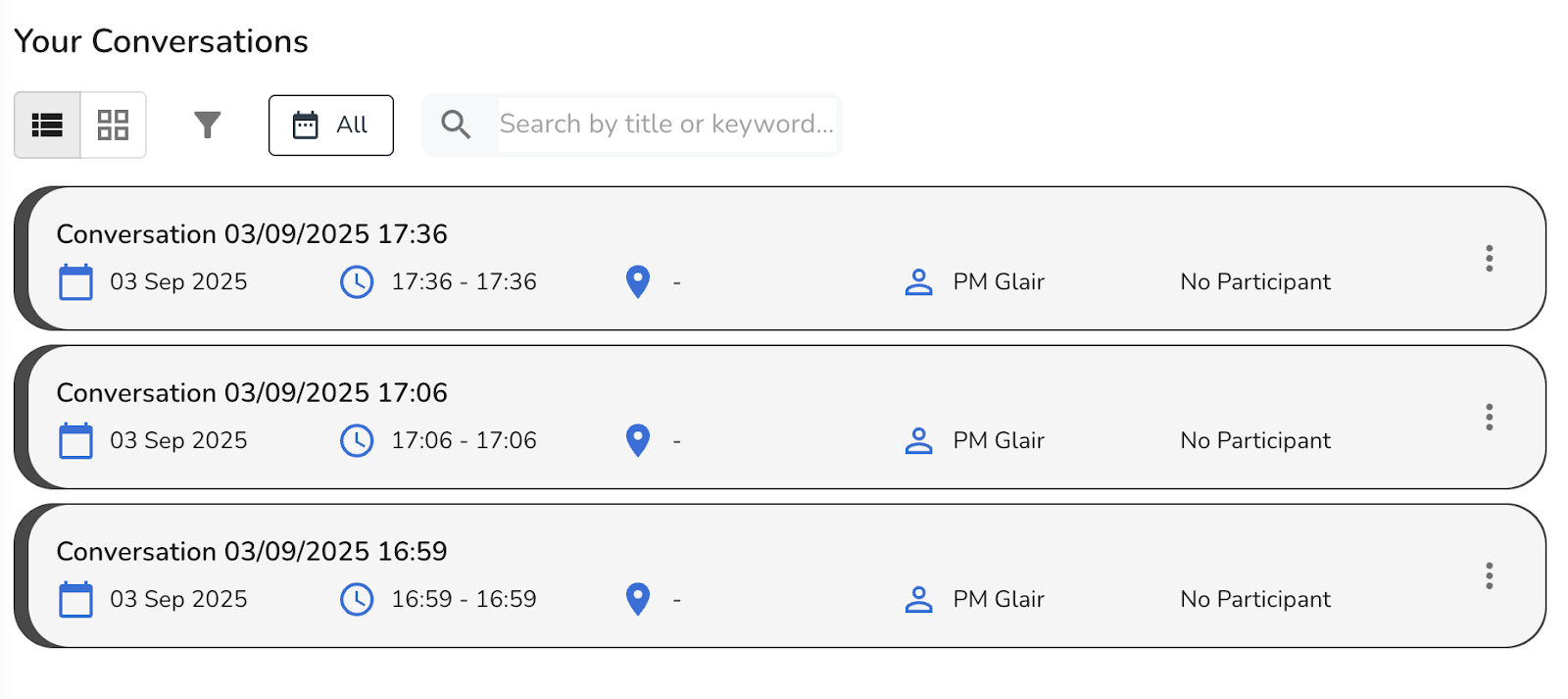
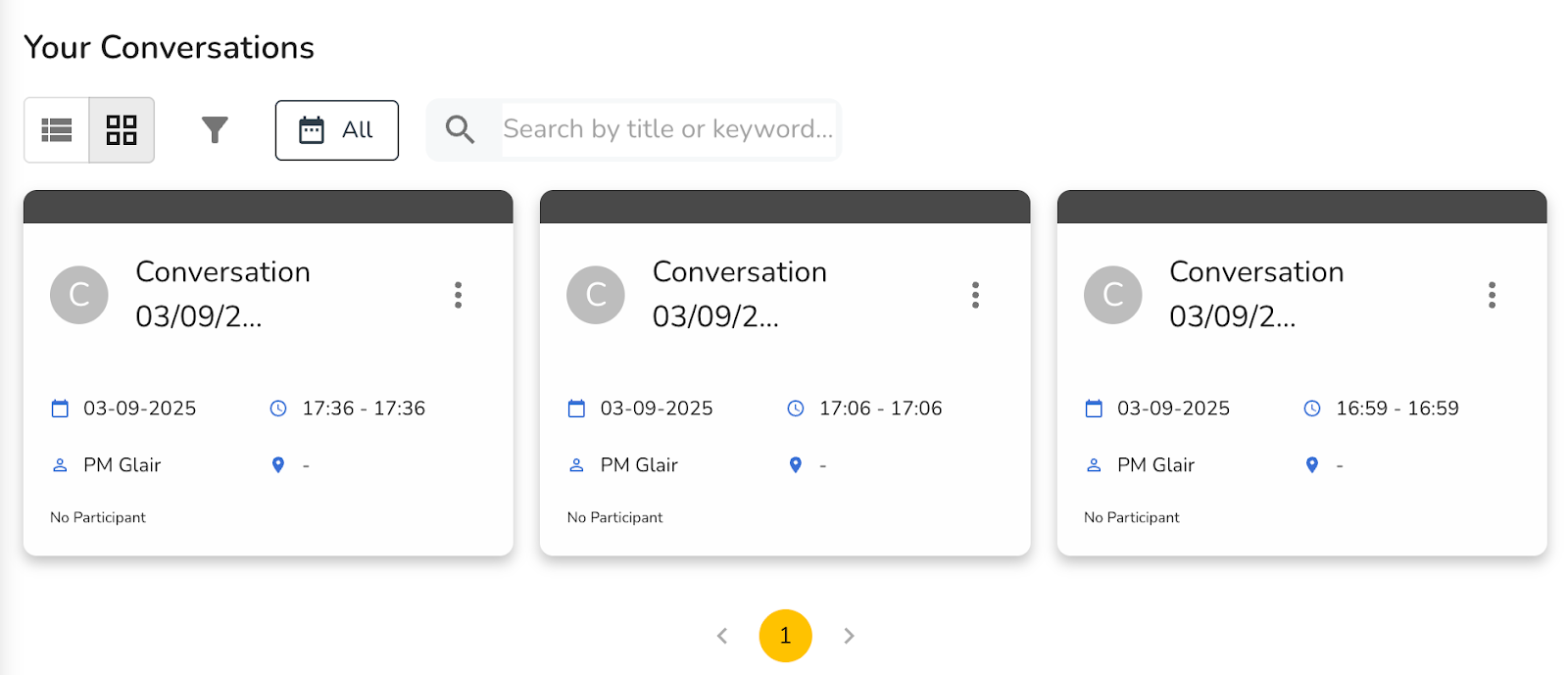
The dashboard displays your meetings in the section called **Your Conversations**. You can switch between two display modes:
1. **List View** – A compact, row-based view for scanning multiple meetings at once.
2. **Grid View** – A card-style layout that provides more visual separation between meetings.
This flexibility allows you to choose the view that best fits your workflow.
## Filters and Search
To help you find the right meeting quickly, the dashboard provides several filtering and search options:
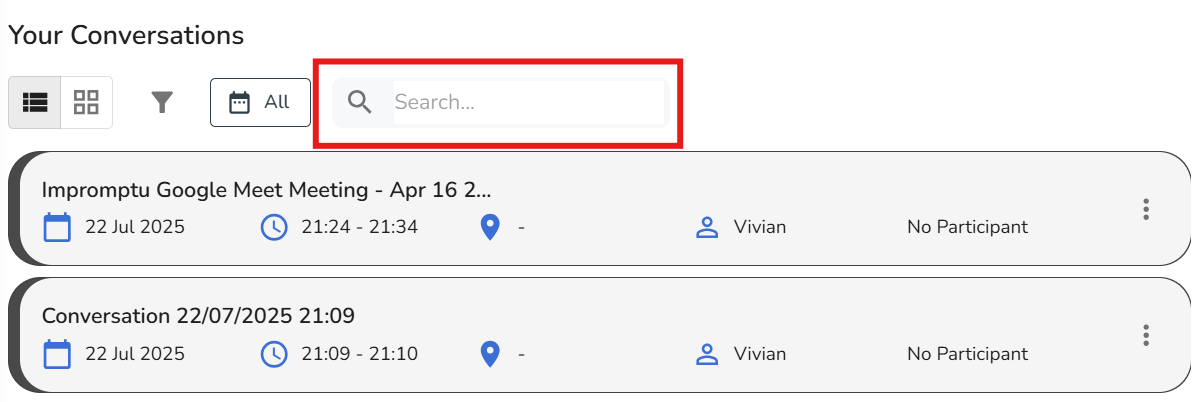
1. **Search Bar** – Enter a meeting title or keyword to locate specific conversations.
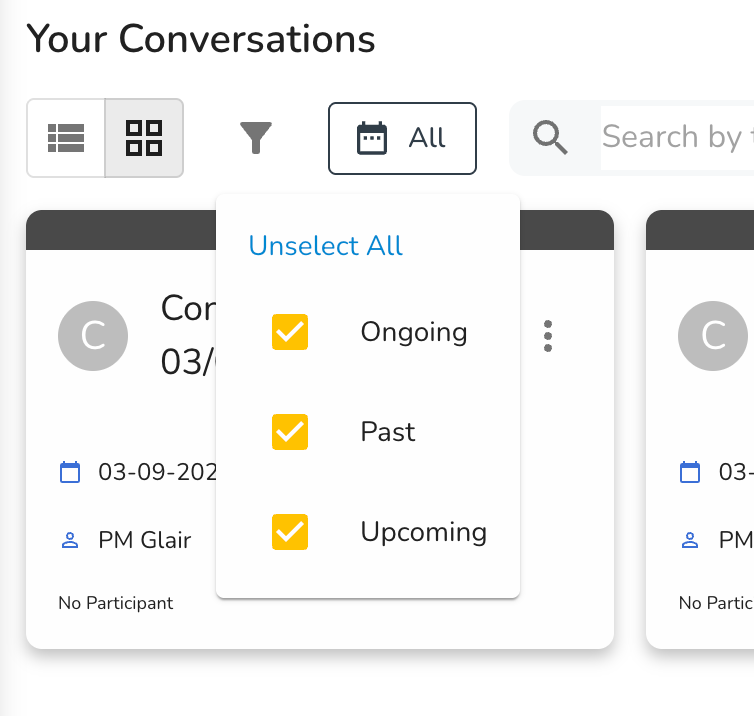
2. **Status Filters** – Narrow results by meeting status:
* **Ongoing** – Meetings currently in progress.
* **Upcoming** – Meetings scheduled for the future.
* **Past** – Meetings that have already finished.
3. **Date Filter** – Use the calendar icon to filter meetings by specific dates.

## Meeting Source
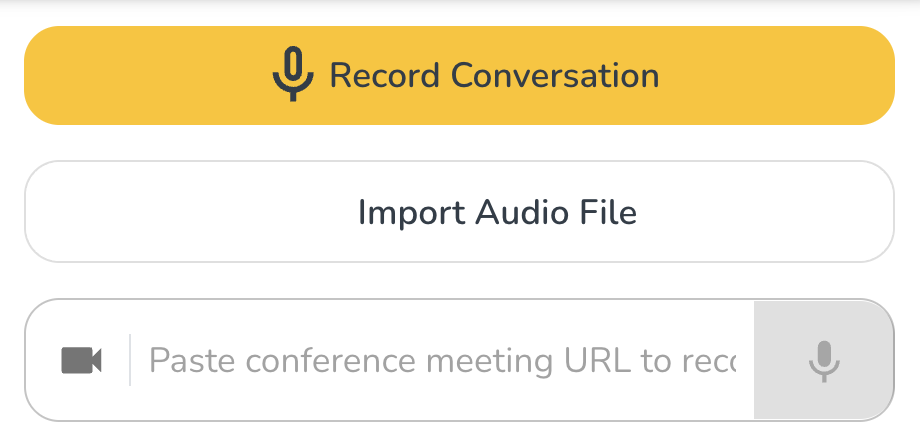
On the top-right side of the dashboard, you will also see the **Meeting Source selector**. This menu lets you choose how Meemo will capture your meeting, such as joining via meeting URL, importing an audio file, or recording directly.
For step-by-step instructions, refer to the [Choose Meeting Source ](https://gdplabs.gitbook.io/meemo/application-ui/choose-meeting-source)page.
## Meeting Statistics
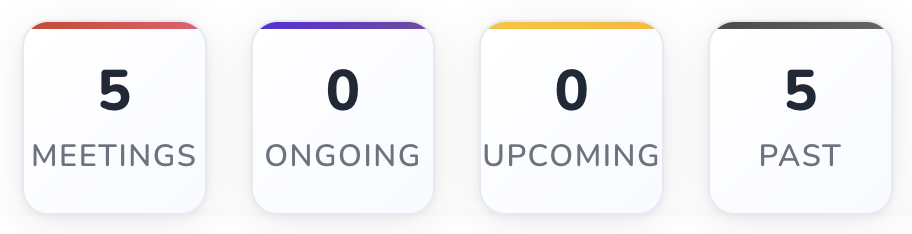
On the right-hand side of the dashboard, you will find a quick overview of your meeting statistics, including:
* **Number of Meetings** – Total meetings in your account.
* **Ongoing** – Meetings that are happening or being processed.
* **Upcoming** – Meetings scheduled for later.
* **Past** – Completed meetings.
This section gives you a snapshot of your activity at a glance.
## Upcoming Meetings Panel
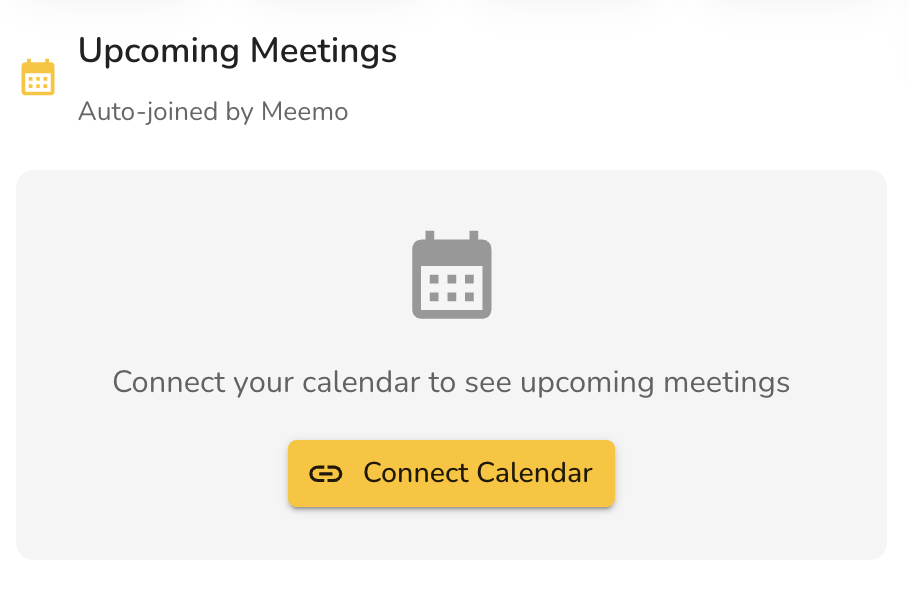
Below the statistics, you will see the Upcoming Meetings panel. This panel shows a list of upcoming meetings only after you connect your calendar for Auto Join Mode.
If you have not connected any calendar, the default view will show a message and a Connect Calendar button.
You can click Connect Calendar to go directly to the Calendar Integration setup. The full setup guide is available on the [Auto Join Mode](https://gdplabs.gitbook.io/meemo/application-ui/auto-join-mode) page.
 * **Ongoing** – Meetings currently in progress.
* **Upcoming** – Meetings scheduled for the future.
* **Past** – Meetings that have already finished.
3. **Date Filter** – Use the calendar icon to filter meetings by specific dates.

## Meeting Source
On the top-right side of the dashboard, you will also see the **Meeting Source selector**. This menu lets you choose how Meemo will capture your meeting, such as joining via meeting URL, importing an audio file, or recording directly.
* **Ongoing** – Meetings currently in progress.
* **Upcoming** – Meetings scheduled for the future.
* **Past** – Meetings that have already finished.
3. **Date Filter** – Use the calendar icon to filter meetings by specific dates.

## Meeting Source
On the top-right side of the dashboard, you will also see the **Meeting Source selector**. This menu lets you choose how Meemo will capture your meeting, such as joining via meeting URL, importing an audio file, or recording directly.