# Profile
The **Profile** page allows you to view and manage your personal account information in Meemo.
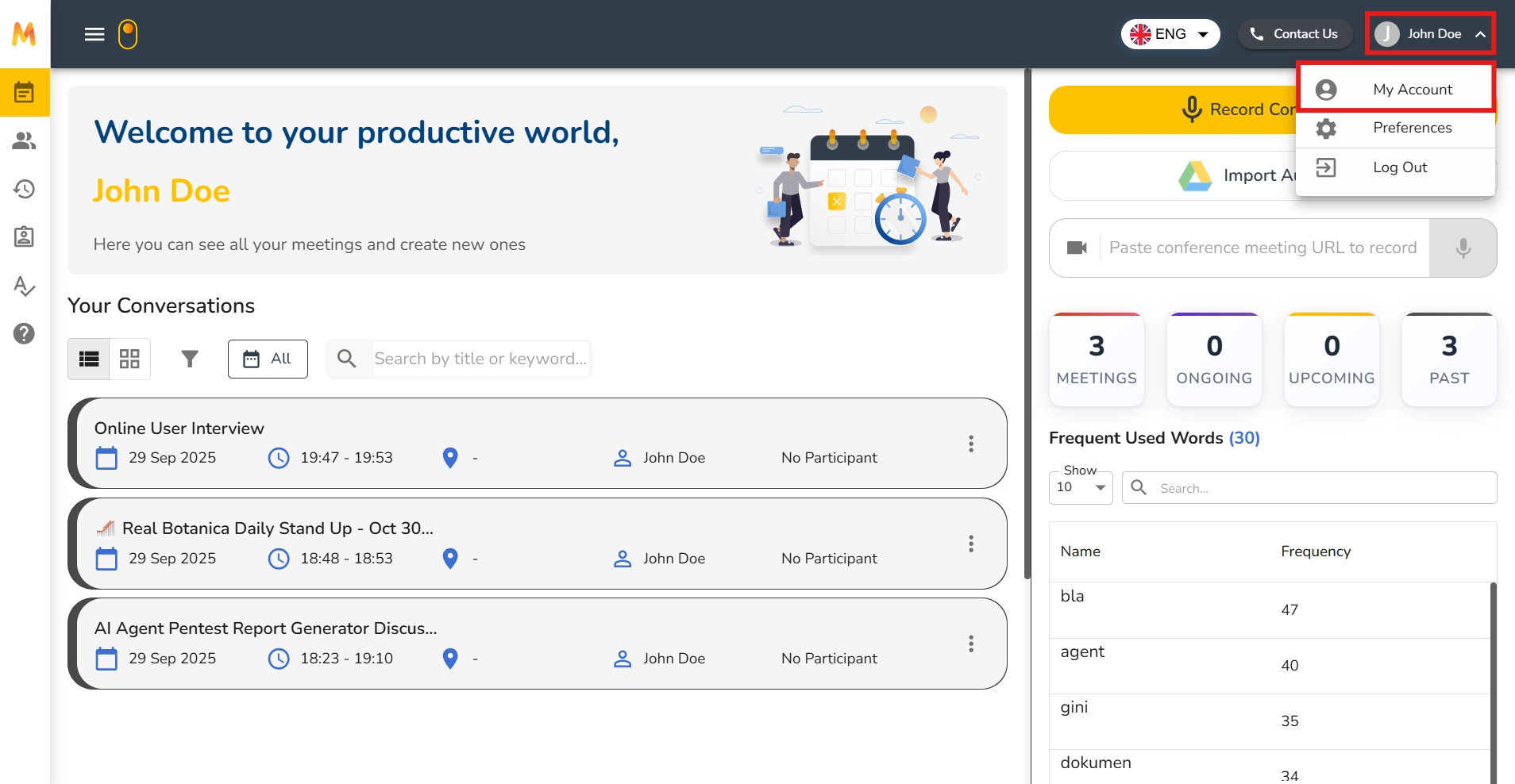
You can access this page by clicking on your **username** in the top-right corner of the screen and then selecting **My Account** from the dropdown menu.
## Profile Overview
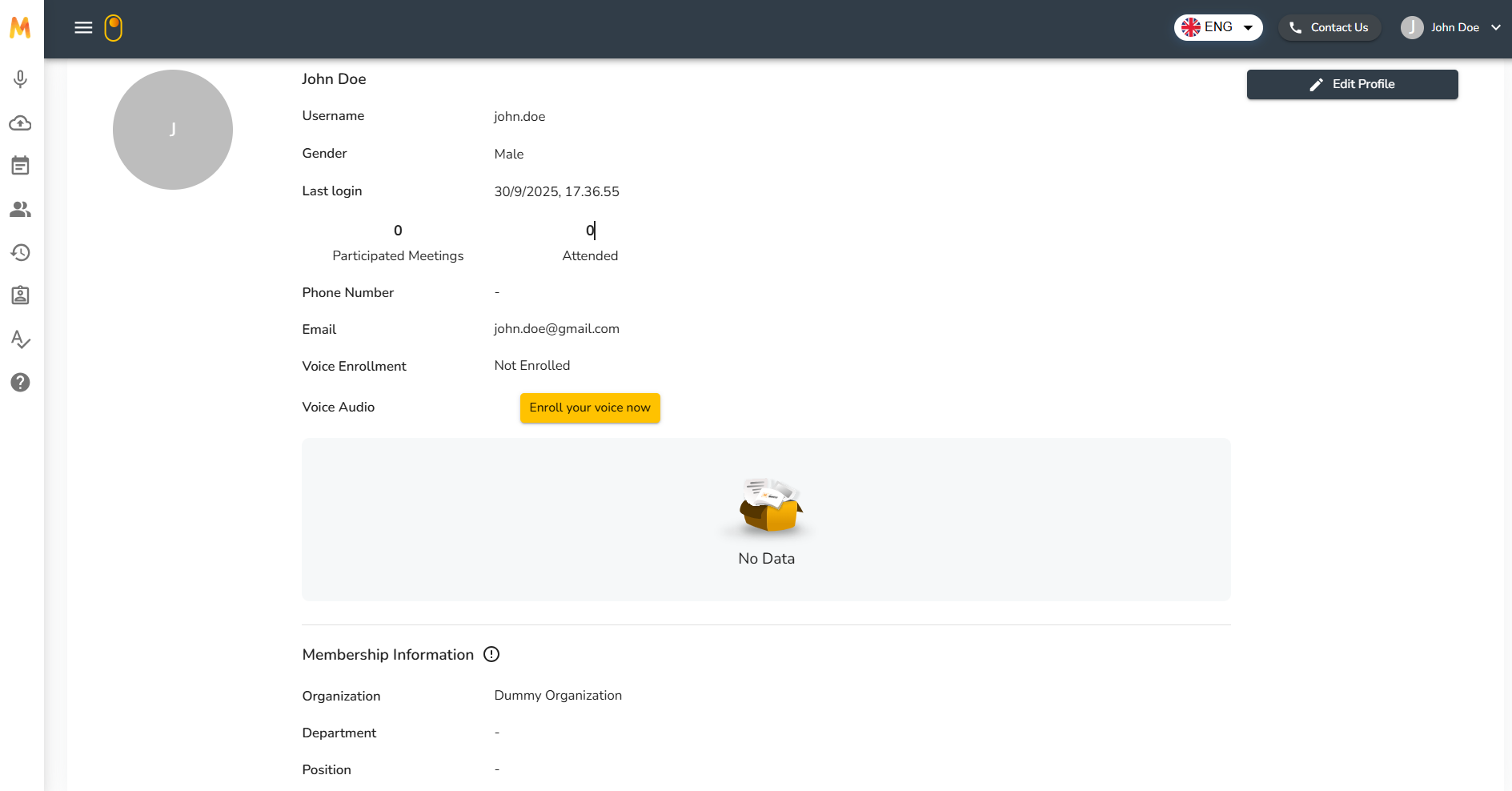
On the Profile page, you will see your personal information displayed.
* **Name** – Your full name as registered in the system.
* **Username** – The username used to log in to Meemo.
* **Gender** – Your gender information (if provided).
* **Last Login** – The most recent date and time you logged into Meemo.
* **Participated Meetings** – Total number of meetings where you have participated.
* **Attended** – Total number of meetings you have attended.
* **Phone Number** – Your registered phone number (if provided).
* **Email** – The email address associated with your account.
### Voice Enrollment
The Profile page also includes an option for **Voice Enrollment**. If your voice is not yet enrolled, the system will display “Not Enrolled.”
* You can click **Enroll your voice now** to register your voice.
* Once enrolled, your voice data will be linked to your account to support voice-based features.
### Membership Information
At the bottom of the Profile page, you can see your membership details within the organisation:
* **Organisation** – The name of the organisation where you are registered.
* **Department** – The department you belong to.
* **Position** – Your role or job title in the organisation.
This section helps clarify your association with your organisation and ensures your account is properly linked.
### Edit Profile
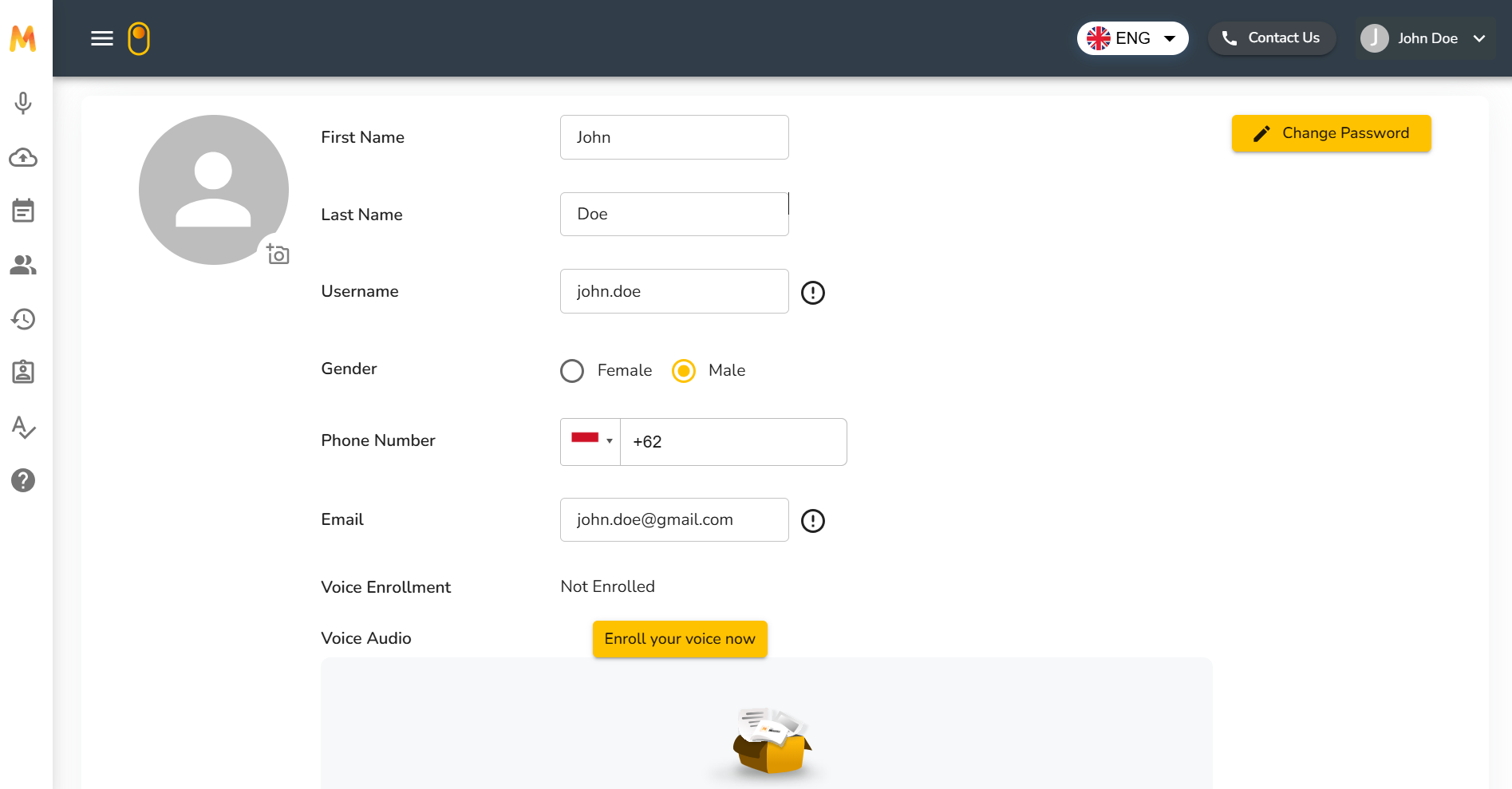
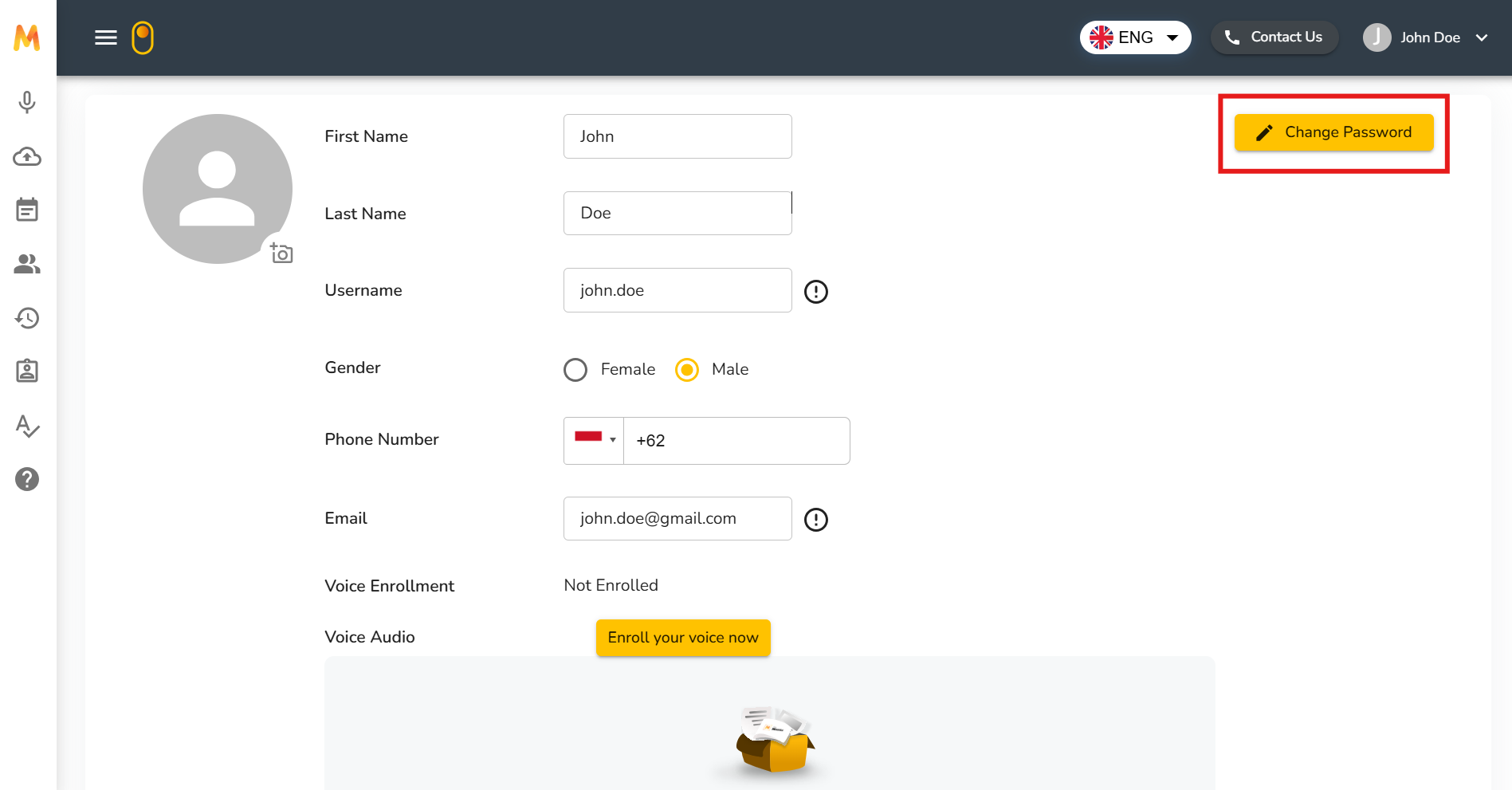
On the Profile page, you can update your personal information by clicking **Edit Profile** in the top-right corner. This will unlock editable fields for you to modify your details.
The editable fields include:
* **First Name** – Update your first name.
* **Last Name** – Update your last name.
* **Username** – Your login username (cannot be changed if restricted by system rules).
* **Gender** – Select Female or Male.
* **Phone Number** – Add or update your phone number, including the country code.
* **Email** – Your registered email address. This is used for login and communication.
* **Voice Enrollment** – This field shows your current enrollment status: **Not Enrolled** or **Enrolled**. You can click Enroll your voice now to register your voice.
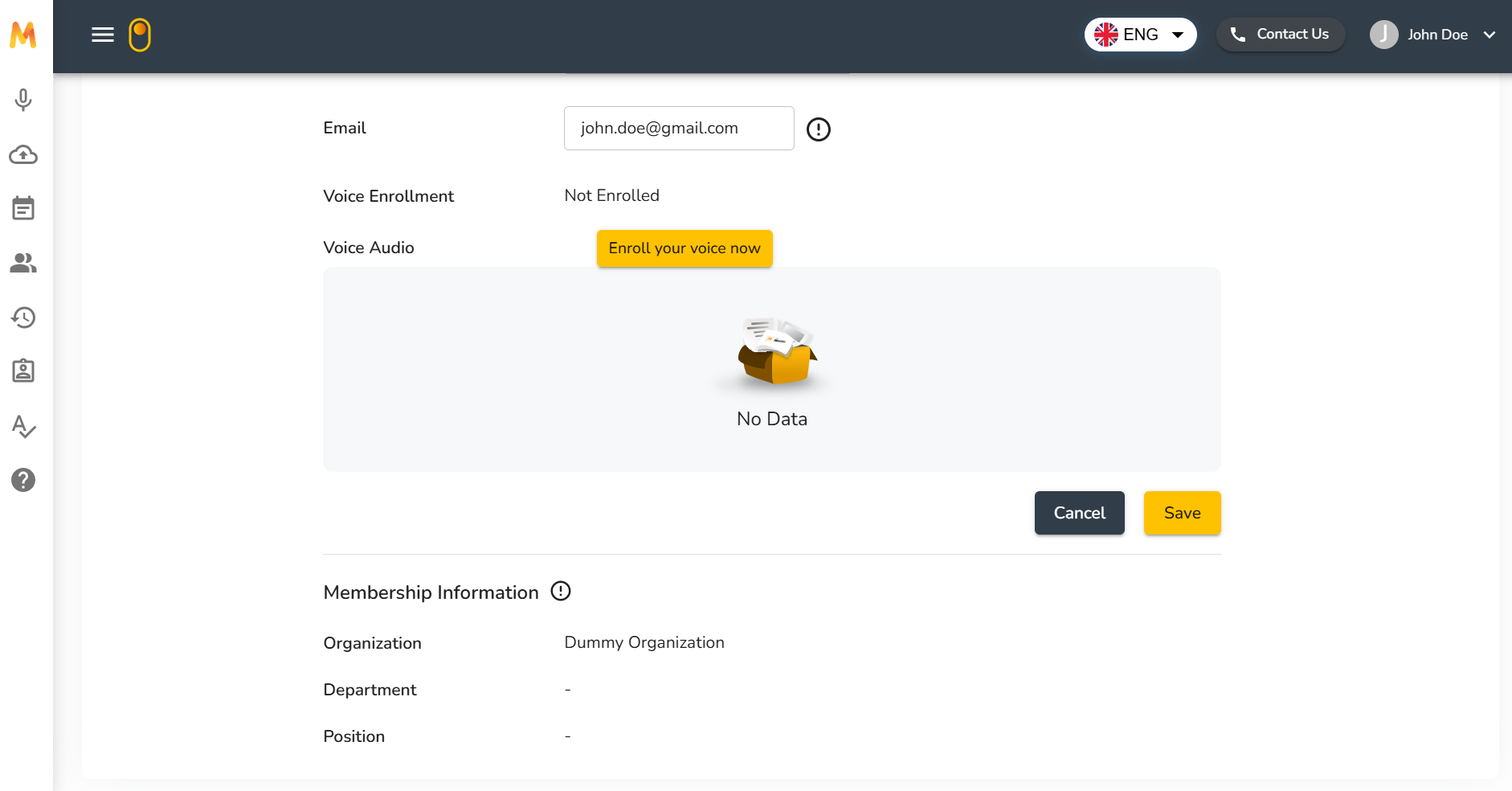
At the bottom, you will see your **Membership Information** (Organisation, Department, Position). These fields are tied to your organisation and may not be editable by you directly.
When finished, click **Save** to confirm your changes or **Cancel** to discard them.
### Change Password
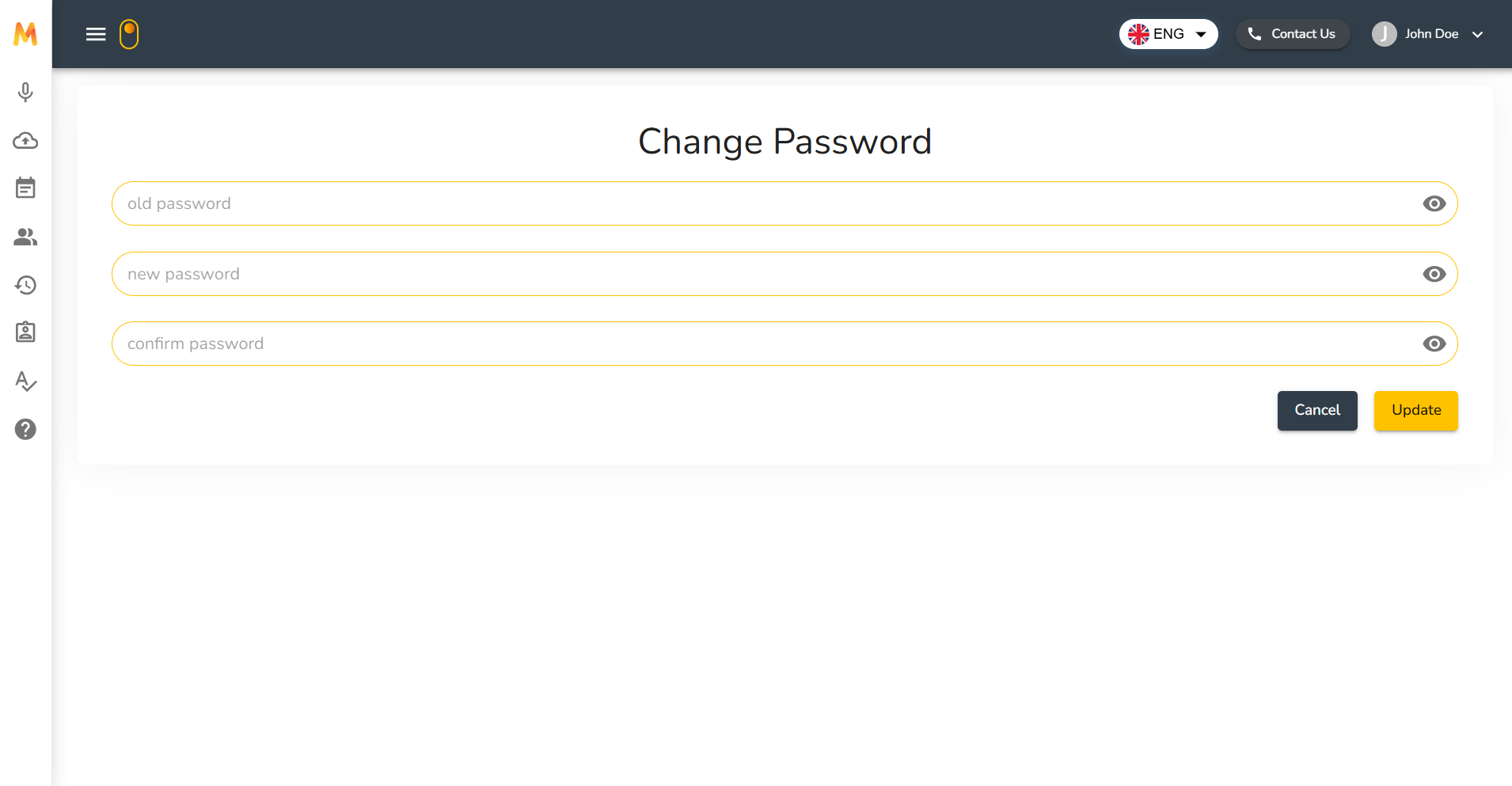
To change your account password, click the **Change Password** button on the Edit Profile page.
A form will appear with three fields.
* **Old Password** – Enter your current password.
* **New Password** – Enter the new password you want to use.
* **Confirm Password** – Re-enter the new password to confirm it matches.
After filling out the fields, click **Update** to save your new password or **Cancel** to exit without making changes.
⚠️ For security, always choose a strong password that is unique and not easily guessed.