# Evaluate GLChat Tutorial

In this guide, we will learn how to use `evaluate_glchat` to **generate GLChat message response** and **evaluate its performance** for QA dataset evaluation.

The evaluation focuses on question-answering capabilities with support for web search capability and PII handling. The dataset and experiment results then can be accessed in **Langfuse** for monitoring. To view more details on each component, you can click them in the sidebar inside the **Evaluation** page.

## Prerequisites

Before you can start evaluating GLChat QA dataset, you need to prepare the following:

### Required Parameters

**1. User ID (`user_id`)**

The `user_id` is a unique identifier for the user who will be interacting with the specified GLChat application. This information is needed to create a conversation or message.

**Where to get it:**

* **From your existing user in GLChat**: If you already have an existing user in your GLChat application, you can use it as the `user_id`.

<figure><img src="https://2275014547-files.gitbook.io/~/files/v0/b/gitbook-x-prod.appspot.com/o/spaces%2Fl9KB7mDeg58CszyWm4TI%2Fuploads%2FcH1ysaNtzMN5jvraTipn%2FScreenshot%202025-10-03%20at%2011.23.47.png?alt=media&#x26;token=183008d8-4d26-469a-8d5c-94706970b2da" alt=""><figcaption></figcaption></figure>

* You can also provide any user that has access to the application you want to test.

**2. Chatbot ID (`chatbot_id`)**

The `chatbot_id` identifies which chatbot or application configuration to use for the conversation. This information is needed to create a conversation or message.

**3. \[Optional] Model Name (`model_name`)**

The `model_name` specifies which language model to use for generating GLChat response. Model name can be filled with the model display name in an application / chatbot. If not specified, the response will be generated using the default model there.

<figure><img src="https://2275014547-files.gitbook.io/~/files/v0/b/gitbook-x-prod.appspot.com/o/spaces%2Fl9KB7mDeg58CszyWm4TI%2Fuploads%2FCJfz0xZMVn3XfgXcvxKI%2FScreenshot%202025-10-03%20at%2013.53.41.png?alt=media&#x26;token=aa0388db-1c37-45a9-a7b0-97202b31e2fc" alt=""><figcaption></figcaption></figure>

### Required Keys

#### For GLChat

We will also need access to the GLChat credentials to generate the response. Please contact GLChat team if you do not have them yet. The required keys are: `GLCHAT_BASE_URL` and `GLCHAT_API_KEY`.

#### For Langfuse

We will need Langfuse credentials to trace, debug, and view the evaluation results for our GLChat QA system. If you do not have any Langfuse credentials yet, you can follow the [New User Configuration](https://gdplabs.gitbook.io/sdk/tutorials/evaluation/experiment-tracker#new-user-configuration) to get them. The required keys are: `LANGFUSE_PUBLIC_KEY`, `LANGFUSE_SECRET_KEY`, and `LANGFUSE_HOST`.

## Step 0: Install the Required Libraries

We need to install the required libraries for GLChat evaluation, including GLChat SDK and Langfuse.

### Install GLChat SDK with evals

The evals module inside glchat-sdk is currently private and requires special access.  To use the evaluation functionality, you need to install the package with the `evals` extra.

#### Using poetry

```bash
# Add the private repository
poetry source add --priority=explicit gen-ai https://glsdk.gdplabs.id/gen-ai/simple

# Configure authentication
poetry config http-basic.gen-ai oauth2accesstoken "$(gcloud auth print-access-token)"

# Install with evals dependency group (uses Poetry's dependency groups with source configuration)
poetry install --with evals
```

#### Using pip

```bash
# Install using Google Cloud access token
pip install glchat-sdk[evals] --extra-index-url https://oauth2accesstoken:$(gcloud auth print-access-token)@glsdk.gdplabs.id/gen-ai/simple
```

`gllm-evals` and `langfuse` should have been included when you install the glchat-sdk with `evals` extra.

## Step 1: Setup Environment and Configuration

Prepare the environment variables for the evaluation script:

{% code title=".env" %}

```
# GLChat
GLCHAT_BASE_URL=
GLCHAT_API_KEY=

# Langfuse
LANGFUSE_PUBLIC_KEY=
LANGFUSE_SECRET_KEY=
LANGFUSE_HOST=
```

{% endcode %}

With the environment variables set, we can now verify and use `GLChat SDK` and `Langfuse`.

```python
import os

from langfuse import get_client

# Initialize Langfuse client
langfuse = get_client()
 
# Verify Langfuse connection
if langfuse.auth_check():
    print("Langfuse client is authenticated and ready!")
else:
    print("Authentication failed. Please check your credentials and host.")

# Verify if GLChat env vars exist and has a non-empty value
GLCHAT_BASE_URL = os.getenv("GLCHAT_BASE_URL")
GLCHAT_API_KEY = api_key=os.getenv("GLCHAT_API_KEY")
if GLCHAT_BASE_URL and GLCHAT_API_KEY:
    print("GLCHAT_BASE_URL and GLCHAT_API_KEY variables are available!")
else:
    print("GLCHAT_BASE_URL and GLCHAT_API_KEY variables are not set or empty.")

```

## Step 2: Prepare Your Dataset

Before we can evaluate, we need to prepare a dataset with all the information needed for evaluation.

To ensure compatibility, your dataset **must use standardized column names**. We enforce a strict naming convention so the module can automatically recognize and process your data correctly.&#x20;

Before using the module, please make sure your dataset columns match the required names exactly (case sensitive).

<table><thead><tr><th>Column Names</th><th>Description</th><th data-type="checkbox">Is Required?</th></tr></thead><tbody><tr><td>question_id</td><td>Unique identifier for each query.</td><td>true</td></tr><tr><td>query</td><td>The question to ask.</td><td>true</td></tr><tr><td>expected_response</td><td>The expected answer to be compared.</td><td>true</td></tr><tr><td><p>search_type </p><p>("normal" or "search")</p></td><td><p>Whether to enable search functionality in GLChat. </p><p></p><p>All rows will be set to "normal" (no search capability) if the column is not stated.</p></td><td>false</td></tr><tr><td><p>enable_pii </p><p>(True or False)</p></td><td><p>Whether to enable PII processing. </p><p></p><p>All rows will be set to <code>False</code> (no pii masking) if the column is not stated.</p></td><td>false</td></tr><tr><td>model_name</td><td><p>The model to be used for response generation for each row in GLChat. </p><p></p><p>If the column is not stated, it will check the provided config for the global configuration. If it is also not stated, it will use the default model based on the provided chatbot.</p></td><td>false</td></tr><tr><td>chatbot_id</td><td><p>The chatbot id to be used for response generation for each row in GLChat. </p><p></p><p>If the column is not stated, it will check the provided config for the global configuration.</p></td><td>false</td></tr><tr><td>attachments</td><td><p>The file names to be used for each row. Left empty for rows not using any attachments. </p><p></p><p>This column is <strong>mandatory</strong> ONLY if you have attachment(s) to be used for response generation. To see more details, you can visit the <a href="../attachments#dataset-format">Attachments</a> page.</p></td><td>false</td></tr><tr><td>Other additional fields</td><td>Any additional fields you deem necessary to be included. Will not affect the evaluation process.</td><td>false</td></tr></tbody></table>

For example purpose, you can download the following CSV file:

{% file src="<https://2275014547-files.gitbook.io/~/files/v0/b/gitbook-x-prod.appspot.com/o/spaces%2Fl9KB7mDeg58CszyWm4TI%2Fuploads%2FlIrWObpcIo9HGqkeFMd5%2Fglchat_qa_data.csv?alt=media&token=3444a102-c201-4c62-a3a7-849bc898fd0b>" %}

## Step 3: Instrument your GLChat Configuration

Before we can evaluate our GLChat system, we need to create a GLChat configuration using `GLChatConfig` to set what configuration to use.

### &#x20;🟢 Minimum Configuration (Bare Minimum)

Use this when you just want to get started fast with default settings.

```python
from glchat_sdk.evals import GLChatConfig

config = GLChatConfig(
    base_url="your-glchat-base-url",  # can also be put in `GLCHAT_BASE_URL` env var
    api_key="your-api-key",  # recommended to be put in `GLCHAT_API_KEY` env var
    chatbot_id="your-chatbot-id",
    username="your-chatbot-username"
)
```

That’s all you need — the rest will be handled by the module using defaults.

### 🔵 Full Configuration (Complete Example)

Use this version if you want **full control** over every parameter and behavior.

```python
from glchat_sdk.evals import GLChatConfig

config = GLChatConfig(
    base_url="your-glchat-base-url",  # can also be put in `GLCHAT_BASE_URL` env var
    api_key="your-api-key",  # recommended to be put in `GLCHAT_API_KEY` env var
    chatbot_id="your-chatbot-id",
    username="your-chatbot-username",
    model_name="global-generation-model",  # the bigger priority is the one in the dataset
    enable_pii="global-enable-pii", # the bigger priority is the one in the dataset
    search_type="global-search-type",  # the bigger priority is the one in the dataset
    include_states="states-in-streaming-response"  # recommended to be `True` as default
    expiry_days="expiry-days-for-shared-conv"  # recommended to be `None` as default
)
```

> 💡 **Tip:** Start with the minimal config, and gradually add more if you need more customization. If the config parameter is also available the dataset column, it will prioritize the one in the dataset column.

## Step 4: Prepare Attachments (Optional)

If your dataset does not need any attachment, feel free to skip this step. To find out more about what type of attachments currently supported and how to set the attachments configuration based on each type, you can visit the [Attachments](https://gdplabs.gitbook.io/sdk/~/revisions/w6A7tUKJGDYFXuci5HcW/tutorials/evaluator/attachments) page.

In this example, we use the **local attachment** as the simplest setup. Regardless of the attachment type you choose, ensure that your files are already stored in a **storage location** we currently support.

For this dataset example, you can download the file and put it in your local directory:

{% file src="<https://2275014547-files.gitbook.io/~/files/v0/b/gitbook-x-prod.appspot.com/o/spaces%2Fl9KB7mDeg58CszyWm4TI%2Fuploads%2FazR7SiSschje5kKF3fwC%2Fgambar%20kartini.jpg?alt=media&token=f5403044-e513-45f5-9c3b-07c84517068a>" %}

After that, you can now create a local attachment configuration. For example, if you put the above image to the local path `/home/user/Documents/files/gambar kartini.jpg`, then you can add the following parameter based on the attachment type: &#x20;

```python
from gllm_evals.types import LocalAttachmentConfig

attachments_config = LocalAttachmentConfig(
    local_directory="home/user/Documents/files"  # put the directory path
)
```

## Step 5: Perform end-to-end Evaluation

To run the end-to-end evaluation, we can use a convenience function in `glchat-sdk` called `evaluate_glchat`. This function provides a streamlined interface for evaluating GLChat models using the existing `gllm-evals` framework. It eliminates the need to manually implement inference functions by providing a pre-built GLChat integration.

We can pass the dataset, the GLChat configuration, and the attachment config to the `evaluate_glchat()` function. In this example, we will use [GEvalGenerationEvaluator](https://gdplabs.gitbook.io/sdk/~/revisions/w6A7tUKJGDYFXuci5HcW/tutorials/evaluator-scorer#gevalgenerationevaluator) which is suitable for evaluating QA dataset. Since we want to use Langfuse, we will also use [LangfuseExperimentTracker](https://gdplabs.gitbook.io/sdk/~/revisions/w6A7tUKJGDYFXuci5HcW/tutorials/experiment-tracker#langfuseexperimenttracker) as the dedicated experiment tracker.

```python
import asyncio
import json
import os

from dotenv import load_dotenv
from langfuse import get_client

from gllm_evals.evaluator.geval_generation_evaluator import GEvalGenerationEvaluator
from gllm_evals.experiment_tracker.langfuse_experiment_tracker import LangfuseExperimentTracker
from gllm_evals.types import LocalAttachmentConfig

from glchat_sdk.evals import GLChatConfig, evaluate_glchat


async def main():
    """Main function example."""
    
    # The GLChat configuration we have created above
    config = GLChatConfig(
        base_url="your-glchat-base-url",
        api_key="your-api-key",
        chatbot_id="your-chatbot-id",
        username="your-chatbot-username"
    )
    
    # The attachment configuration we have created above
    attachments_config = LocalAttachmentConfig(
        local_directory="home/user/Documents/files"
    )
    
    # Call the `evaluate_glchat`
    results = await evaluate_glchat(
        data="path/to/glchat_qa_data.csv",
        evaluators=[
            GEvalGenerationEvaluator(
                model="google/gemini-2.5-pro",
                model_credentials=os.getenv("GOOGLE_API_KEY"),
                name="generation",
            )
        ],
        experiment_tracker=LangfuseExperimentTracker(
            langfuse_client=get_client(),
        ),
        config=config,
        attachments_config=attachments_config,
    )
    print(results)


if __name__ == "__main__":
    asyncio.run(main())
```

## Step 6: View Evaluation Results in Langfuse <a href="#step-6-view-evaluation-results-in-langfuse" id="step-6-view-evaluation-results-in-langfuse"></a>

After running the evaluation, all the dataset and experiment you've provided will automatically be logged to Langfuse. This step shows you how to navigate the Langfuse UI and interpret your evaluation results.

### Accessing Your Langfuse Dashboard <a href="#accessing-your-langfuse-dashboard" id="accessing-your-langfuse-dashboard"></a>

1. **Navigate to your Langfuse project**: Go to <https://langfuse.obrol.id/>.
2. **Select your organization and project**: Choose your dedicated organization and project (or that you've just created).
3. **Access the dashboard**: You'll see various sections for analyzing your data.

#### **View Dataset**

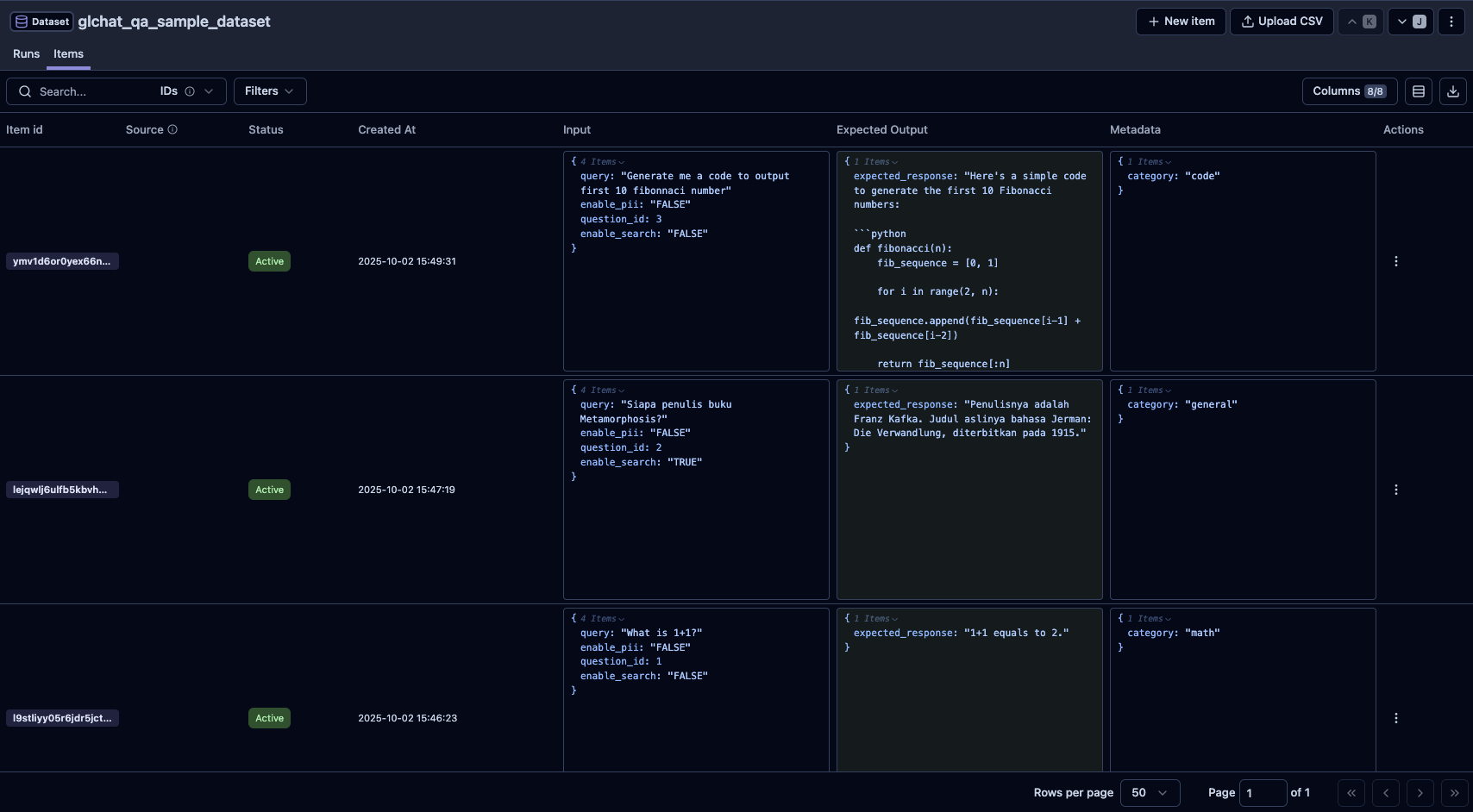
To view the dataset you've just created, you can go to: Project → **Datasets** → select a dataset → **Items**. In this page, we can see all the data rows you have just evaluated based on the provided Langfuse mapping. This dataset can also be reused for future evaluation.

<figure><img src="https://2275014547-files.gitbook.io/~/files/v0/b/gitbook-x-prod.appspot.com/o/spaces%2Fl9KB7mDeg58CszyWm4TI%2Fuploads%2F5Z84vK2ehrZCyWtDgkYu%2FScreenshot%202025-10-02%20at%2015.50.03.png?alt=media&#x26;token=85b6e7fd-5dd7-448b-9491-a669d4fa07a4" alt=""><figcaption></figcaption></figure>

To see more detail for each row, you can click one of the data item above.

<figure><img src="https://2275014547-files.gitbook.io/~/files/v0/b/gitbook-x-prod.appspot.com/o/spaces%2Fl9KB7mDeg58CszyWm4TI%2Fuploads%2FwojefKEkrkMzDiFQDjeY%2FScreenshot%202025-10-02%20at%2015.50.55.png?alt=media&#x26;token=78a40484-2b79-4beb-a38e-1ac34ccf11e3" alt=""><figcaption></figcaption></figure>

#### View Dataset Runs (Leaderboard)

Dataset runs are the executions over a dataset with per-item output. A dataset run represents an experiment. To view the dataset runs, you can go to: Project → **Datasets** → select a dataset → **Runs**. In here, you can view all the scores for each experiment, **including LLM-as-a-judge score columns**—both as **aggregations** and **per-row** values.

<figure><img src="https://2275014547-files.gitbook.io/~/files/v0/b/gitbook-x-prod.appspot.com/o/spaces%2Fl9KB7mDeg58CszyWm4TI%2Fuploads%2Fke6iuwilGCK8LZcb2Aeu%2FScreenshot%202025-10-02%20at%2016.17.31.png?alt=media&#x26;token=5974ac3e-a620-46c8-ad6f-373316c736d1" alt=""><figcaption></figcaption></figure>

You can also click a specific dataset run to view all the data rows result for each experiment:

<figure><img src="https://2275014547-files.gitbook.io/~/files/v0/b/gitbook-x-prod.appspot.com/o/spaces%2Fl9KB7mDeg58CszyWm4TI%2Fuploads%2FKSp7KcIfXlkorMBu67LX%2FScreenshot%202025-10-02%20at%2016.20.48.png?alt=media&#x26;token=96e9a611-223e-4ce3-b606-497173b0164f" alt=""><figcaption></figcaption></figure>

#### **View Traces / Observations**

Trace / observation let you drill into individual spans, view the inputs, outputs (our evaluation results), and metadata. You can go to: Project → **Traces**.

Below is the trace example:

<figure><img src="https://2275014547-files.gitbook.io/~/files/v0/b/gitbook-x-prod.appspot.com/o/spaces%2Fl9KB7mDeg58CszyWm4TI%2Fuploads%2Fvo3SPThGxTseOlwhdbwP%2FScreenshot%202025-10-02%20at%2016.26.12.png?alt=media&#x26;token=9577f779-c8b1-4fa4-8dd5-7503554d0ebc" alt=""><figcaption></figcaption></figure>

#### **View Sessions (Experiment Results)**

Sessions contain grouped traces per experiment; you can review and annotate each data trace in sessions. You can access the sessions in Project → **Sessions**.

Below is the session screenshot example:

<figure><img src="https://2275014547-files.gitbook.io/~/files/v0/b/gitbook-x-prod.appspot.com/o/spaces%2Fl9KB7mDeg58CszyWm4TI%2Fuploads%2Ftx9wUfcndOHA5xPwrPeS%2FScreenshot%202025-10-02%20at%2016.44.25.png?alt=media&#x26;token=29cbe6a5-b78e-4e7e-af6d-af3b3162edb8" alt=""><figcaption></figcaption></figure>

{% hint style="success" %}
Congratulation! You have just created your first GLChat QA Evaluation!
{% endhint %}

## Export to CSV

You also can optionally export the experiment results in Langfuse to CSV by running the following metrics:

```python
import asyncio
from langfuse import get_client

from gllm_evals.experiment_tracker.langfuse_experiment_tracker import LangfuseExperimentTracker
from glchat_sdk.evals.constant import GLChatDefaults

async def main():
    """The main function to export langfuse experiment results to CSV."""

    run_id = "" # Fill this with the session id you want to export
    exp_tracker = LangfuseExperimentTracker(langfuse_client=get_client(), project_name=GLChatDefaults.PROJECT_NAME)
    exp_tracker.export_experiment_results(run_id=run_id)

if __name__ == "__main__":
    asyncio.run(main())
```

## Conclusion

This cookbook provides a simple guide to evaluating GLChat QA systems using Langfuse. By following these steps, you can:

* Monitor your QA system's performance
* Evaluate different models and configurations systematically
* Track quality metrics and identify improvement opportunities
* Ensure reliable and high-quality QA responses in production

***

**Note**: This is a simple guide to get you started with GLChat QA evaluation using Langfuse. For more comprehensive evaluation information and advanced techniques, please refer to the [evaluation gitbook](https://gdplabs.gitbook.io/sdk/~/revisions/w6A7tUKJGDYFXuci5HcW/tutorials/evaluator).