# Installation
Prerequisites
This example specifically requires completion of all setup steps listed on the White Label's [Prerequisites](https://gdplabs.gitbook.io/glchat/sdk/resources/white-label/prerequisites) page.
To install GLChat on your own machine (on-premises), we provide docker images.
## Installation with Docker 🐳
Follow these steps to install GLChat UI with Docker
{% stepper %}
{% step %}
Authenticate your docker with gcloud auth:
```
gcloud auth configure-docker asia-southeast2-docker.pkg.dev
```
{% endstep %}
{% step %}
Pull the GLChat UI docker image:
```
docker pull \
asia-southeast2-docker.pkg.dev/gdp-labs/projects/gen-ai-template/glchat-ui
```
{% endstep %}
{% step %}
Create `.env` file:
You can use the following sample .env file to get you started.
```bash
ENABLE_GUEST_MODE=true
ENABLE_LOGIN_GUEST_MODE=true
NEXT_PUBLIC_CHATBOT_LOGO=https://placehold.co/50x50
NEXT_PUBLIC_CHATBOT_LOGO_LIGHT=https://placehold.co/150x50/000000/FFFFFF.png
NEXT_PUBLIC_CHATBOT_LOGO_DARK=https://placehold.co/150x50
```
{% endstep %}
{% step %}
Run GLChat UI docker image as docker container:
```
docker run -d \
-p 3000:3000 \
--env-file .env \
--name glchat-ui \
asia-southeast2-docker.pkg.dev/gdp-labs/projects/gen-ai-template/glchat-ui
```
{% endstep %}
{% step %}
Access the GLChat UI
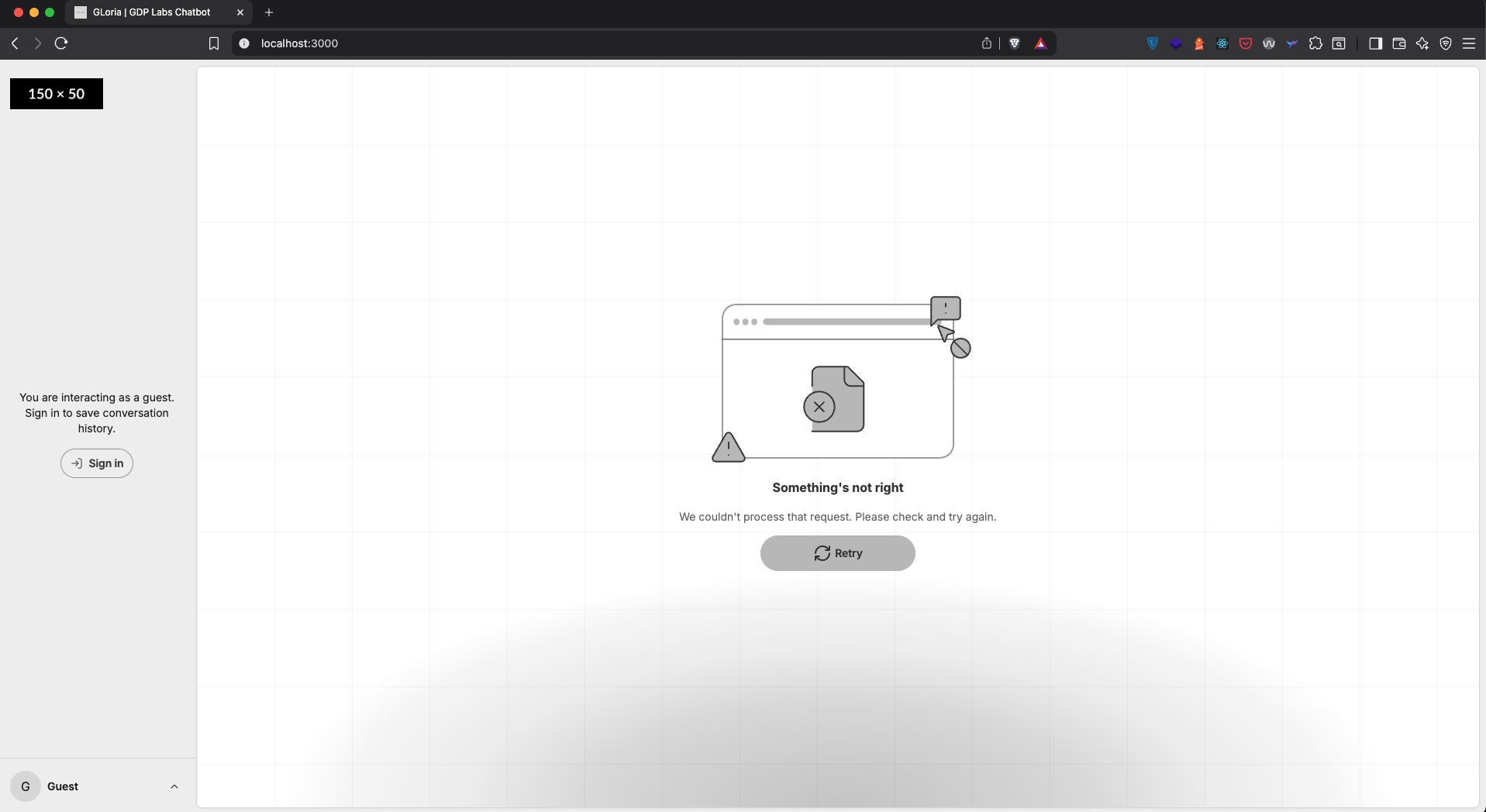
Open GLChat UI at `http://localhost:3000` and you should see something like this (the error message is expected as we don't set environment variable for GLChat Backend):
 If your system appearance is set to dark, it will look like this:
 If you use Chrome, you can set CSS media feature `prefers-color-scheme` to switch the theme. See [here](https://developer.chrome.com/docs/devtools/rendering/emulate-css/) for more details on Chrome's CSS media feature.
{% endstep %}
{% step %}
Troubleshoot
```bash
# View logs
docker logs glchat-ui
# Restart container
docker restart glchat-ui
# Stop container
docker stop glchat-ui
```
{% endstep %}
{% step %}
If you need to change the `.env` file:
```bash
# Stop the container
docker stop glchat-ui
# Delete the container
docker rm glchat-ui
# Re-create the container
docker run -d \
-p 3000:3000 \
--env-file .env \
--name glchat-ui \
asia-southeast2-docker.pkg.dev/gdp-labs/projects/gen-ai-template/glchat-ui
```
{% endstep %}
{% endstepper %}
## Installation with Docker Compose 🐙
If you use Chrome, you can set CSS media feature `prefers-color-scheme` to switch the theme. See [here](https://developer.chrome.com/docs/devtools/rendering/emulate-css/) for more details on Chrome's CSS media feature.
{% endstep %}
{% step %}
Troubleshoot
```bash
# View logs
docker logs glchat-ui
# Restart container
docker restart glchat-ui
# Stop container
docker stop glchat-ui
```
{% endstep %}
{% step %}
If you need to change the `.env` file:
```bash
# Stop the container
docker stop glchat-ui
# Delete the container
docker rm glchat-ui
# Re-create the container
docker run -d \
-p 3000:3000 \
--env-file .env \
--name glchat-ui \
asia-southeast2-docker.pkg.dev/gdp-labs/projects/gen-ai-template/glchat-ui
```
{% endstep %}
{% endstepper %}
## Installation with Docker Compose 🐙
docker-compose.yml
```docker
services:
glchat-be:
image: asia-southeast2-docker.pkg.dev/gdp-labs/projects/gen-ai-template/glchat-be
ports:
- "5001:5001"
env_file:
- .env
depends_on:
elasticsearch:
condition: service_healthy
postgres:
condition: service_healthy
minio:
condition: service_healthy
redis:
condition: service_healthy
glchat-dpo-api:
image: asia-southeast2-docker.pkg.dev/gdp-labs/projects/gen-ai-template/glchat-dpo
ports:
- "8001:8001"
volumes:
- docproc-data:/app/data
env_file:
- .env
entrypoint: /app/.venv/bin/uvicorn
command:
- glchat_dpo.app:app
- --host
- 0.0.0.0
- --port
- "8001"
- --reload
depends_on:
volume-permissions:
condition: service_completed_successfully
rabbitmq:
condition: service_healthy
elasticsearch:
condition: service_healthy
glchat-dpo-flower:
image: asia-southeast2-docker.pkg.dev/gdp-labs/projects/gen-ai-template/glchat-dpo
ports:
- "5555:5555"
volumes:
- docproc-data:/app/data
env_file:
- .env
entrypoint: /app/.venv/bin/celery
command:
- "--broker=amqp://${RABBITMQ_USER}:${RABBITMQ_PASSWORD}@${RABBITMQ_HOST}:${RABBITMQ_PORT:-5672}/"
- "flower"
- "--broker_api=http://${RABBITMQ_USER}:${RABBITMQ_PASSWORD}@${RABBITMQ_HOST}:15672/api/"
depends_on:
volume-permissions:
condition: service_completed_successfully
rabbitmq:
condition: service_healthy
glchat-dpo-worker:
image: asia-southeast2-docker.pkg.dev/gdp-labs/projects/gen-ai-template/glchat-dpo
volumes:
- docproc-data:/app/data
env_file:
- .env
entrypoint: /app/.venv/bin/celery
command:
- "-A"
- "glchat_dpo.orchestrator.celery_app"
- "worker"
- "--loglevel=debug"
- "-Q"
- "loader_queue,parser_queue,chunker_queue,data_generator_queue,router_queue,other_queue,priority_loader_queue,priority_parser_queue,priority_chunker_queue,priority_data_generator_queue,priority_router_queue,priority_other_queue,downloader_queue,priority_downloader_queue,deleter_queue,priority_deleter_queue,indexer_queue,priority_indexer_queue"
- "-n"
- "glchat-dpo-worker"
- "--autoscale=8,1"
depends_on:
volume-permissions:
condition: service_completed_successfully
rabbitmq:
condition: service_healthy
elasticsearch:
condition: service_healthy
glchat-ui:
image: asia-southeast2-docker.pkg.dev/gdp-labs/projects/gen-ai-template/glchat-ui
ports:
- "3000:3000"
environment:
- HOST=0.0.0.0
- PORT=3000
env_file:
- .env
depends_on:
- glchat-be
- stackauth-server
# Authentication Services
stackauth-server:
image: asia-southeast2-docker.pkg.dev/gdp-labs/projects/stack-auth/server
environment:
- NEXT_PUBLIC_STACK_API_URL=${NEXT_PUBLIC_STACK_API_URL}
- NEXT_PUBLIC_STACK_DASHBOARD_URL=${NEXT_PUBLIC_STACK_DASHBOARD_URL}
- STACK_DATABASE_CONNECTION_STRING=${STACK_DATABASE_CONNECTION_STRING}
- STACK_DIRECT_DATABASE_CONNECTION_STRING=${STACK_DIRECT_DATABASE_CONNECTION_STRING}
- STACK_SERVER_SECRET=${STACK_SERVER_SECRET}
- STACK_SEED_INTERNAL_PROJECT_ALLOW_LOCALHOST=${STACK_SEED_INTERNAL_PROJECT_ALLOW_LOCALHOST}
- STACK_SEED_INTERNAL_PROJECT_SIGN_UP_ENABLED=${STACK_SEED_INTERNAL_PROJECT_SIGN_UP_ENABLED}
- STACK_RUN_MIGRATIONS=${STACK_RUN_MIGRATIONS}
- STACK_RUN_SEED_SCRIPT=${STACK_RUN_SEED_SCRIPT}
- STACK_SVIX_SERVER_URL=${STACK_SVIX_SERVER_URL}
- NEXT_PUBLIC_STACK_SVIX_SERVER_URL=${NEXT_PUBLIC_STACK_SVIX_SERVER_URL}
- STACK_SVIX_API_KEY=${STACK_SVIX_API_KEY}
ports:
- "8101:8101"
- "8102:8102"
depends_on:
postgres:
condition: service_healthy
svix-server:
condition: service_healthy
svix-server:
image: svix/svix-server
environment:
- WAIT_FOR=true
- SVIX_REDIS_DSN=${SVIX_REDIS_DSN}
- SVIX_DB_DSN=${SVIX_DB_DSN}
- SVIX_JWT_SECRET=${SVIX_JWT_SECRET}
ports:
- "8071:8071"
healthcheck:
test: ["CMD-SHELL", "svix-server healthcheck http://localhost:8071"]
interval: 1s
timeout: 1s
retries: 600
depends_on:
postgres:
condition: service_healthy
redis:
condition: service_healthy
# Infrastructure Services
volume-permissions:
image: busybox
volumes:
- docproc-data:/app/data
command: >
sh -c "chown -R 1000:1000 /app/data && chmod -R 777 /app/data"
elasticsearch:
image: docker.elastic.co/elasticsearch/elasticsearch:8.9.1
volumes:
- elasticsearch-data:/usr/share/elasticsearch/data
environment:
- cluster.name=${ELASTICSEARCH_CLUSTER_NAME}
- discovery.type=single-node
- http.host=0.0.0.0
- transport.host=0.0.0.0
- xpack.security.enabled=false
- ES_JAVA_OPTS=${ELASTICSEARCH_JAVA_OPTS}
ports:
- "9200:9200"
healthcheck:
test: ["CMD", "curl", "-f", "http://localhost:9200"]
interval: 10s
timeout: 5s
retries: 5
start_period: 60s
postgres:
image: postgres
volumes:
- postgres-data:/var/lib/postgresql/data
environment:
- PGDATA=/var/lib/postgresql/data/pgdata
- POSTGRES_DB=${POSTGRES_DB}
- POSTGRES_PASSWORD=${POSTGRES_PASSWORD}
ports:
- "5432:5432"
healthcheck:
test: ["CMD-SHELL", "pg_isready", "-d", "${POSTGRES_DB}"]
interval: 10s
timeout: 5s
retries: 5
start_period: 60s
adminer:
image: adminer
ports:
- "8080:8080"
environment:
ADMINER_DEFAULT_SERVER: ${ADMINER_DEFAULT_SERVER}
depends_on:
postgres:
condition: service_healthy
minio:
image: minio/minio:RELEASE.2024-08-29T01-40-52Z
volumes:
- minio-data:/data
environment:
- MINIO_ROOT_USER=${MINIO_ROOT_USER}
- MINIO_ROOT_PASSWORD=${MINIO_ROOT_PASSWORD}
- MINIO_SERVER_URL=${MINIO_SERVER_URL}
ports:
- "9000:9000"
- "9001:9001"
command: server /data --console-address ":9001"
healthcheck:
test: ["CMD", "curl", "-f", "http://localhost:9000/minio/health/live"]
interval: 10s
timeout: 5s
retries: 5
start_period: 60s
redis:
image: redis:7.0
ports:
- "6379:6379"
volumes:
- redis-data:/data
environment:
- REDIS_PASSWORD=${REDIS_PASSWORD}
command: ["redis-server", "--requirepass", "${REDIS_PASSWORD}"]
healthcheck:
test: ["CMD", "redis-cli", "ping"]
interval: 10s
timeout: 5s
retries: 5
start_period: 60s
rabbitmq:
image: rabbitmq:3-management
hostname: ${RABBITMQ_HOSTNAME}
environment:
- RABBITMQ_DEFAULT_USER=${RABBITMQ_USER}
- RABBITMQ_DEFAULT_PASS=${RABBITMQ_PASSWORD}
ports:
- "5672:5672"
- "15672:15672"
volumes:
- rabbitmq-data:/var/lib/rabbitmq
- rabbitmq-logs:/var/log/rabbitmq
healthcheck:
test: ["CMD", "rabbitmq-diagnostics", "check_port_connectivity"]
interval: 10s
timeout: 30s
retries: 5
start_period: 90s
volumes:
docproc-data:
elasticsearch-data:
postgres-data:
minio-data:
redis-data:
rabbitmq-data:
rabbitmq-logs:
networks:
default:
name: glchat
```
{% stepper %}
{% step %}
Create `docker-compose.yml` file, you can find the sample above
{% endstep %}
{% step %}
Create `.env` file, you can find the sample in \
{% endstep %}
{% step %}
Execute the `docker-compose.yml` file
```bash
docker compose up -d --wait
```
{% endstep %}
{% step %}
Check the containers from the `docker-compose.yml` file:
```bash
docker compose ps
```
{% endstep %}
{% endstepper %}